The idea
Under the music, a Whole room track for your scenes, then one track per light for a color, an effect or a movement of its own. All the tracks play together. And the lights follow the music itself: a pause, a jump back, a PC that slows down, they stay with it.
Creating an act
-
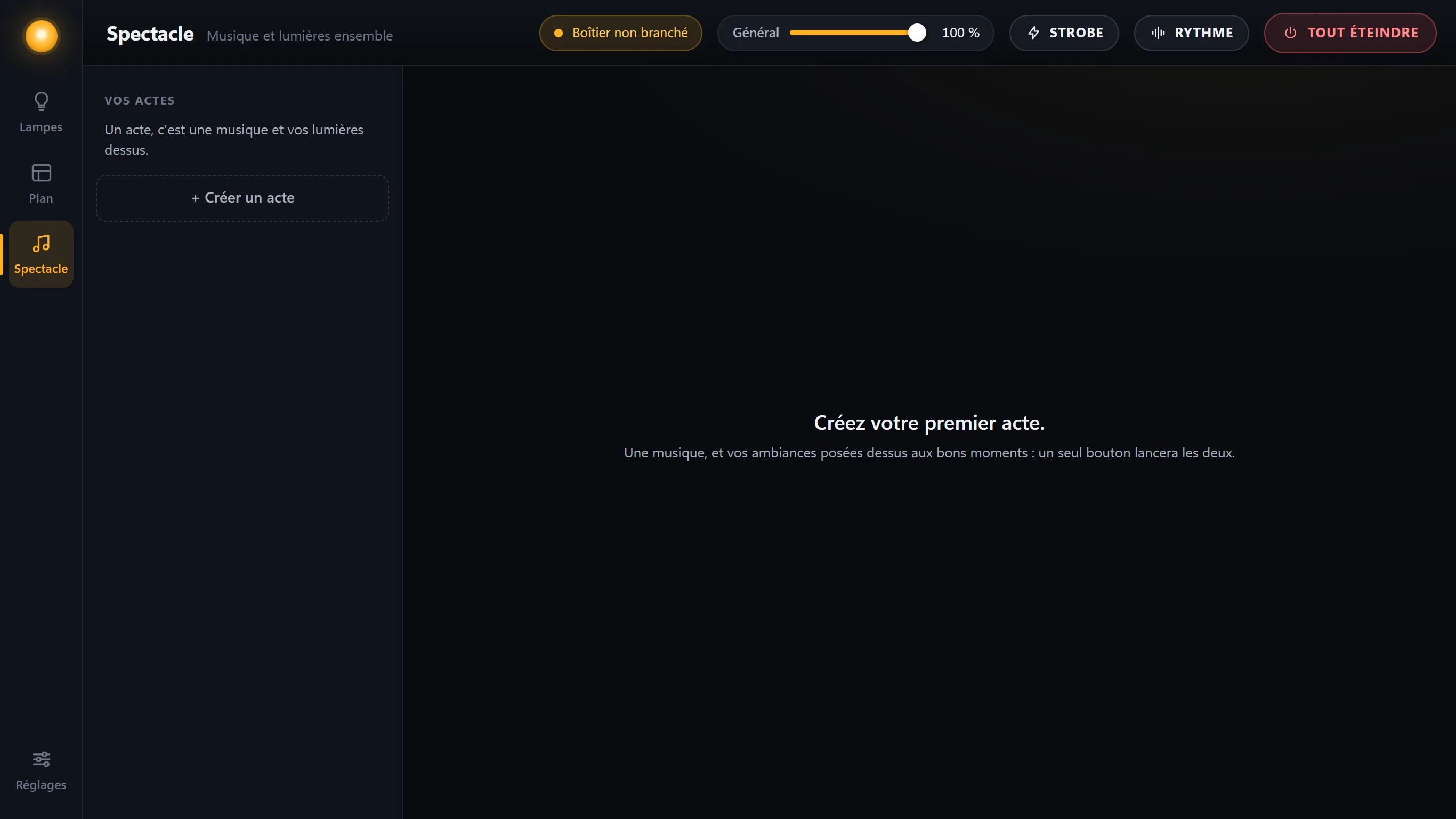
The Show screen
In the left column, click + Create an act.
-
A name and a piece of music
Give the act a name, then choose its music from the list, or Find music on the PC…: the Windows file window opens. Lumières plays music in MP3 and WAV; it copies it into its own folder, so the original can stay where it is.
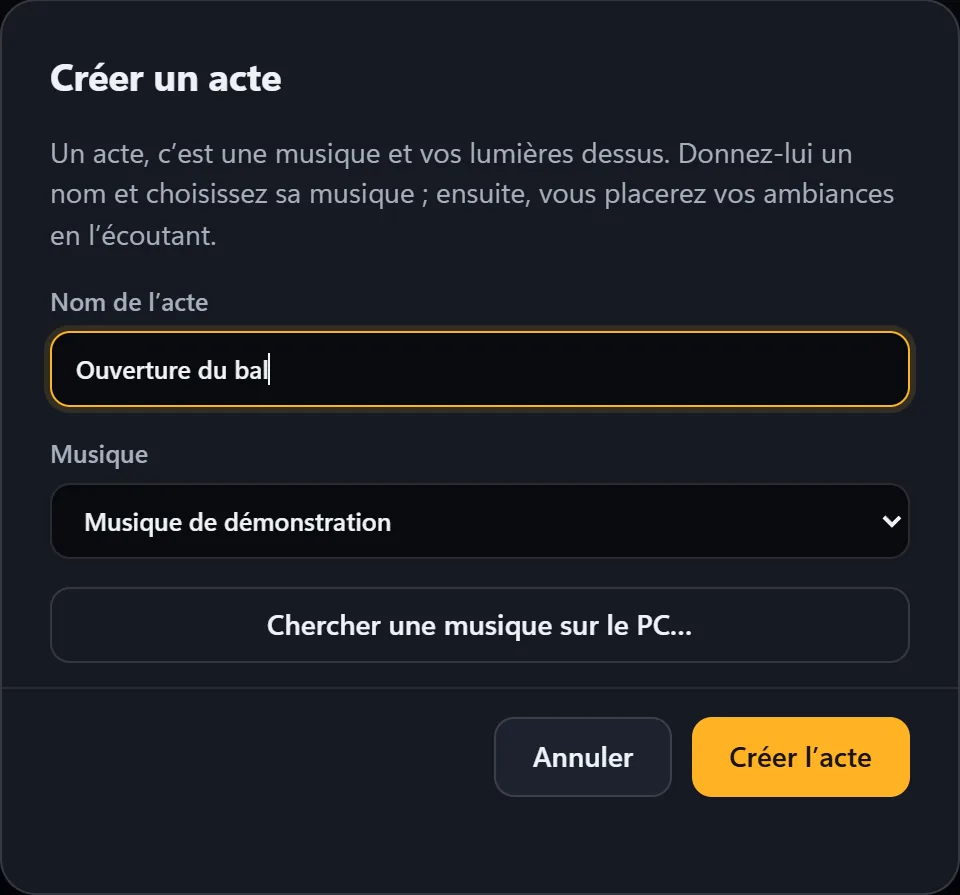
- “Create the act”It opens right away, ready to compose. Lumières first listens to the music to draw it: it only takes a few seconds.
The track editor
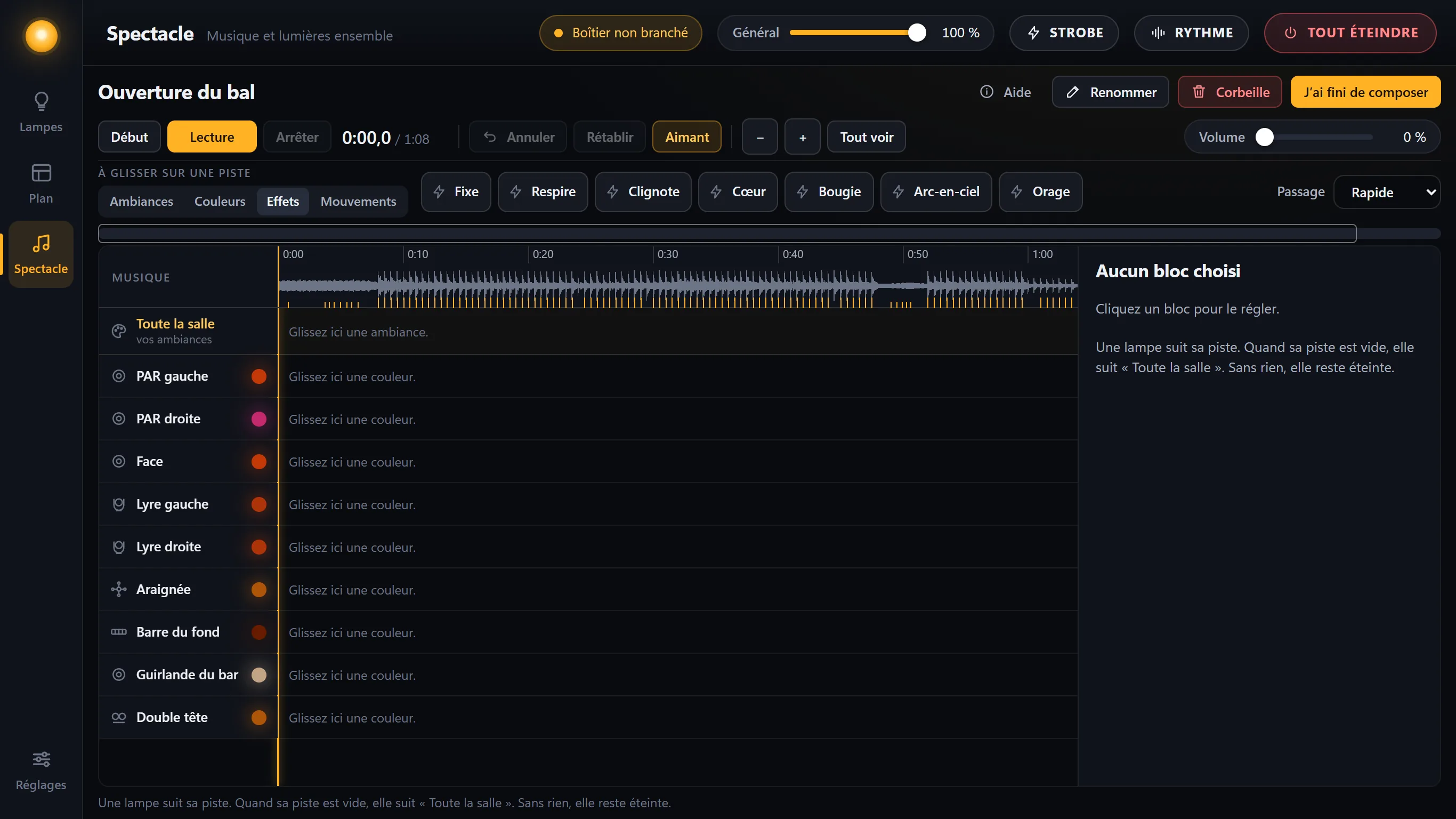
- At the top, the music drawn: its shape, and its beats as small amber marks. The line shows how far it has played; a click in the music jumps there.
- Below, the tracks: Whole room for your scenes, then one track per light, with its name.
- The palette Drag onto a track, with four tabs: Scenes, Colors, Effects, Movements.
- On the right, the settings of the block you selected.
- The top bar: To start, Play, Stop, Undo, Redo, Snap, the zoom (− and +), View all, and the volume.
A light follows its track. When its track is empty, it follows “Whole room”. With neither, it stays off.
Placing blocks
- Choose a palette tabScenes for the whole room; Colors, Effects or Movements for one light.
-
Drag a tile onto a track
To the point in the music where you want it: a block appears, and it starts where you dropped it. On Whole room, a scene lasts until the next one; on a light’s track, a block lasts a few seconds, aligned with the beats.
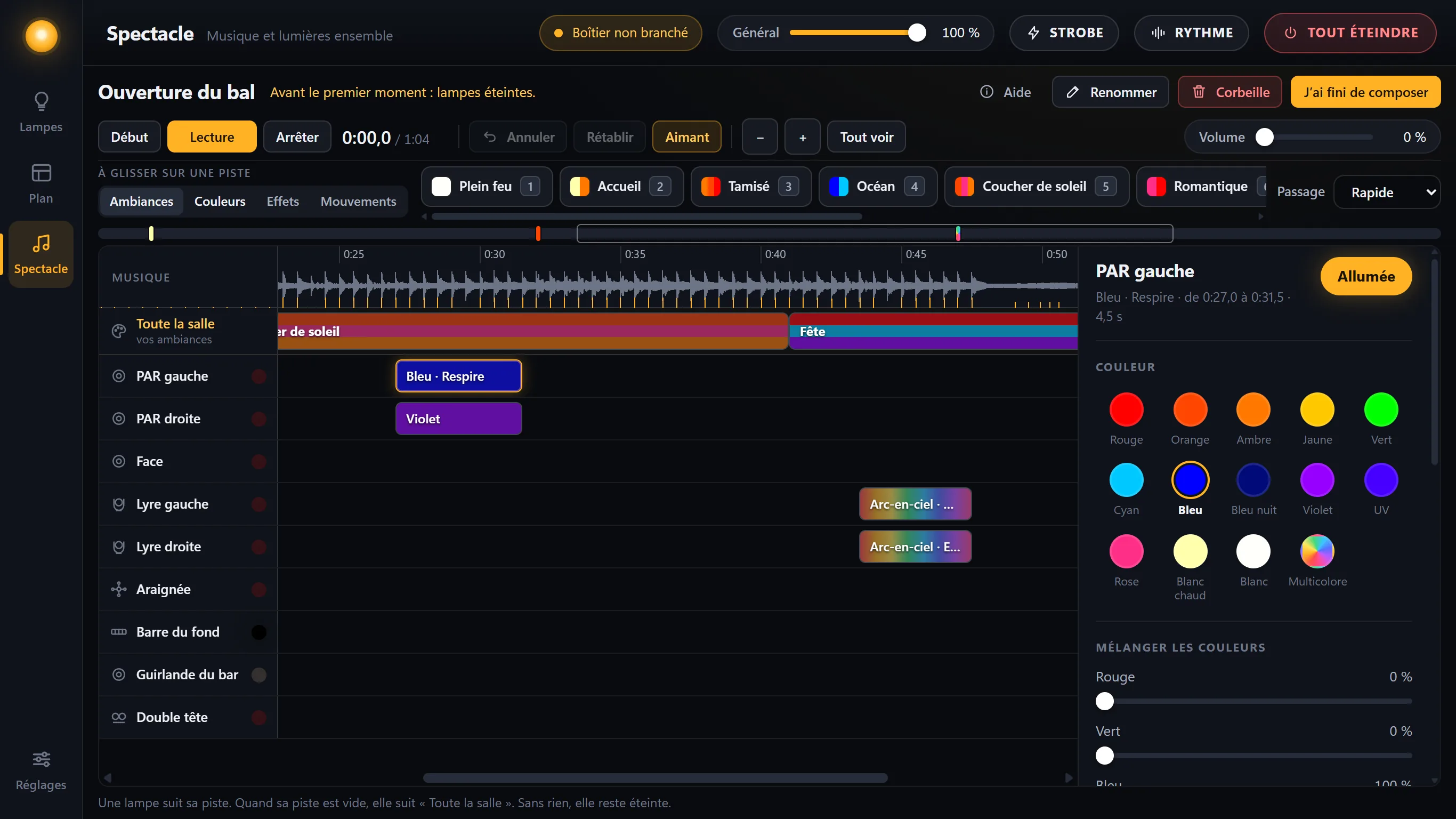
The scenes for the whole room; two spotlights and two moving heads do something else for a while, then go back to the room. With + and −, you can zoom in or out on the timeline. - Onto a block already placedDropped at the very start of a block, the tile changes the whole block: a “Breathe” effect dropped on the start of the blue block makes it breathe. Dropped further along, it splits the block: the rest takes what you dropped.
To darken the room at one point, drag Blackout onto Whole room; on a light’s track, the light stays off during that block.
With the keyboard, while composing: 1 to 9 place your first nine scenes on Whole room, where the music is, 0 a blackout; the space bar plays or pauses the music.

Fine-tuning
| To… | What to do |
|---|---|
| Move a block | Drag it. |
| Make it longer or shorter | Drag one of its edges. |
| Adjust it | Click it: its settings open on the right (color, brightness, effect, fade-in and fade-out). |
| Align it with the music | With Snap on, blocks stick to the beats and to other blocks. Hold Alt to do without it for a moment. |
| Copy, paste | Ctrl + C, then Ctrl + V; Ctrl + D duplicates it right after. |
| Remove it | Delete, or Remove this block in its settings. |
| Go back a step | Undo (Ctrl + Z) and Redo (Ctrl + Y). |
| Take a closer look | − and +; View all shows the whole piece of music at a glance. |
Transition, at the end of the palette, sets how the blocks you place come in and go out: Instant, Fast (half a second), Smooth (a second and a half) or Slow (4 seconds).
I’m done composing puts the tools away: a stray click during the evening adds nothing. To work on the act again: Compose this act. Rename changes its name; Trash removes it from the list, without erasing it.
Playing the act
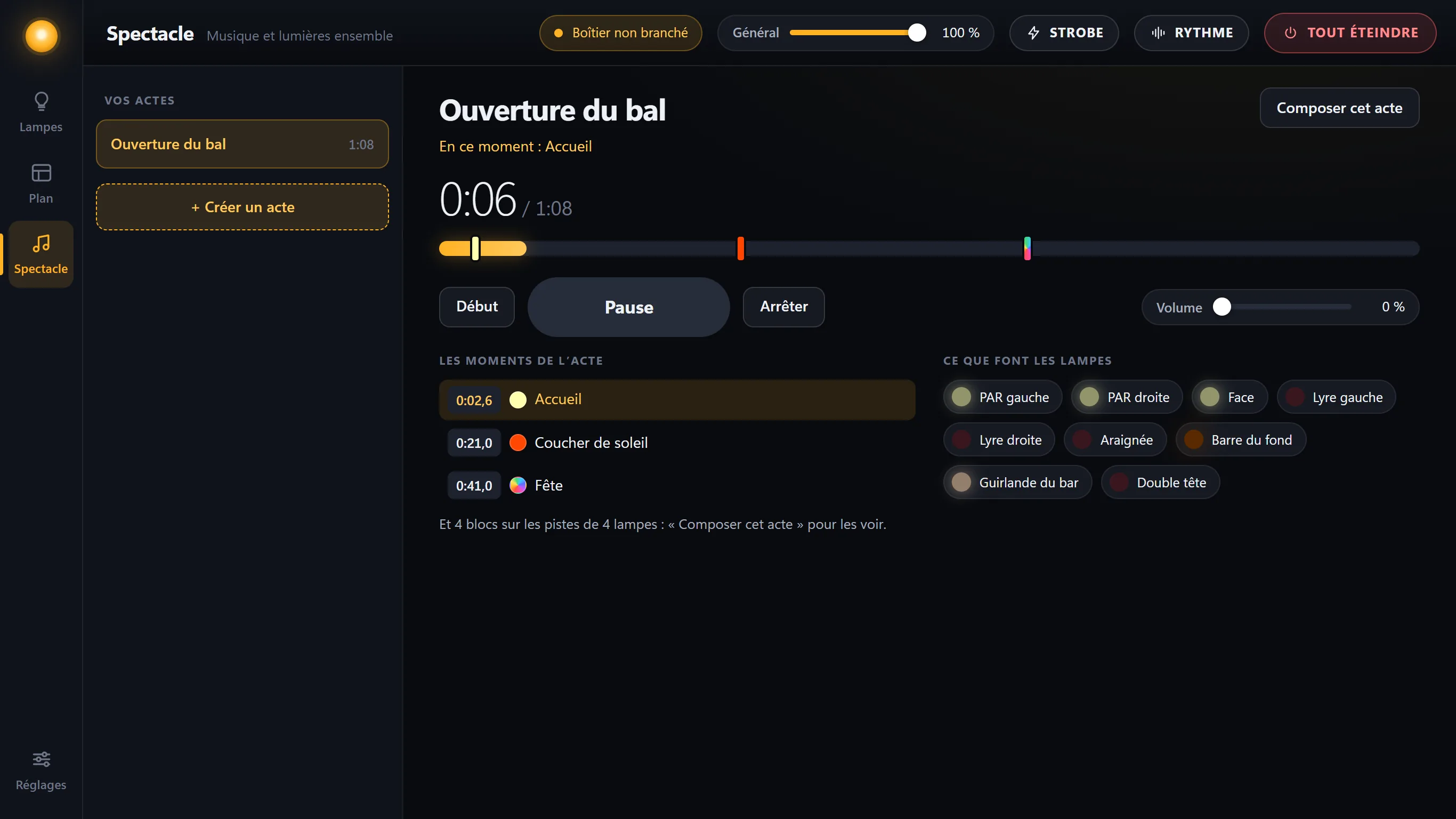
- Choose the actIn the left column. Choosing it doesn’t change anything in the room yet.
-
Play
The music and the lights start together. The list shows the current cue, and “What the lights are doing” shows their live color. To start goes back to the beginning; a click on the timeline jumps to that point.
-
While it plays
The act is in control of the lights: a banner says so on the Lights and Layout screens. Anything that would change the lights has no effect while it plays: a scene (on the PC, it doesn’t show; from the phone, it is refused), a motor, the strobe, the beat. When paused, touching a light gives you back control.
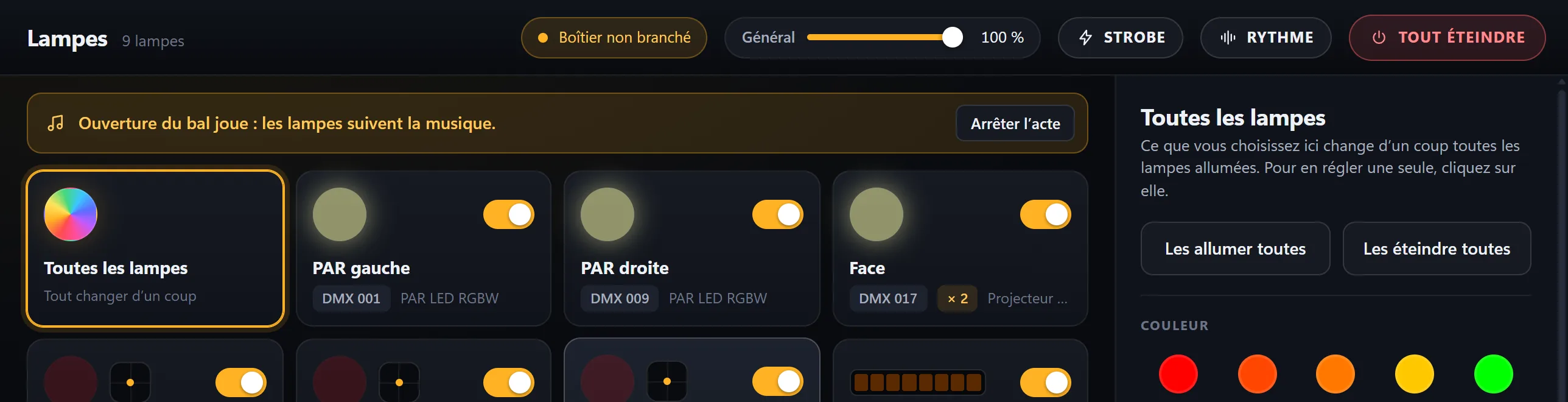
- StopStop, or Stop the act on the banner.
From the phone, the Show tab opens an act, starts it, pauses it and sets the volume: see the phone.