How it works
- The PC stays in charge. It stays on, with Lumières open: the PC is always the one talking to the lights. The phone sends it commands.
- Over the room’s Wi-Fi. The phone and the PC are on the same Wi-Fi; nothing goes via the Internet.
- Only paired phones are obeyed. A phone is paired once, with a pairing code shown by the PC: a venue’s Wi-Fi is often open to guests too.
- Android 10 or later.
Pairing the phone
-
On the PC: request a pairing code
Settings, Phone section, then Add a phone. A six-digit pairing code appears; it is valid for five minutes, and only once.
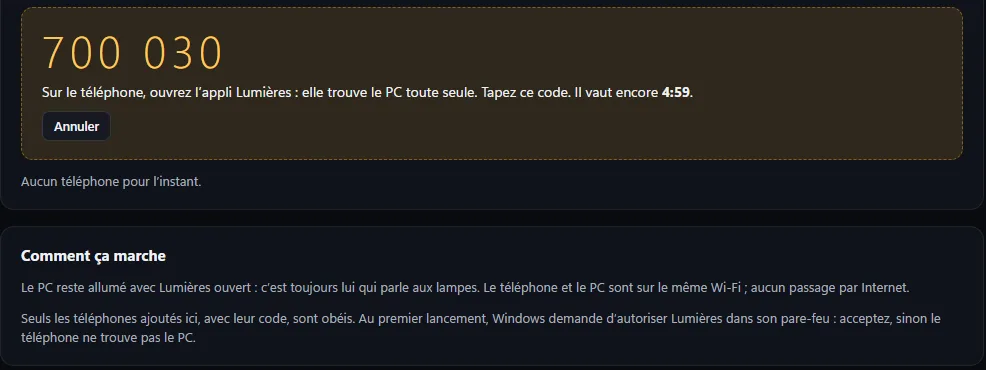
- On the phone: open the appIt looks for the PC on the Wi-Fi by itself. Tap the PC you want to control.
- Enter the pairing code, then “Confirm”Done, once and for all: next time, no pairing code needed.
Check that the phone is on the same Wi-Fi as the PC, and that Lumières is open on it. Otherwise, use Enter the address manually: on the PC, it is in Settings, Phone section, on the “PC address on the network” line. See also the common questions.
The four tabs
Always at the top of the app: the name of the PC being controlled, a green dot when it responds, the interface status, and the big Blackout button.
Lights
The Master level, your scenes (one tap to start one), the lights live, and the movements.
Show
The PC’s acts: open, play, pause, back to the start, stop, and the music volume.
Beat
Lights to the beat of the music: see below.
Strobe
Every light in white, flashing together, from 1 to 12 flashes per second. Press again to stop.
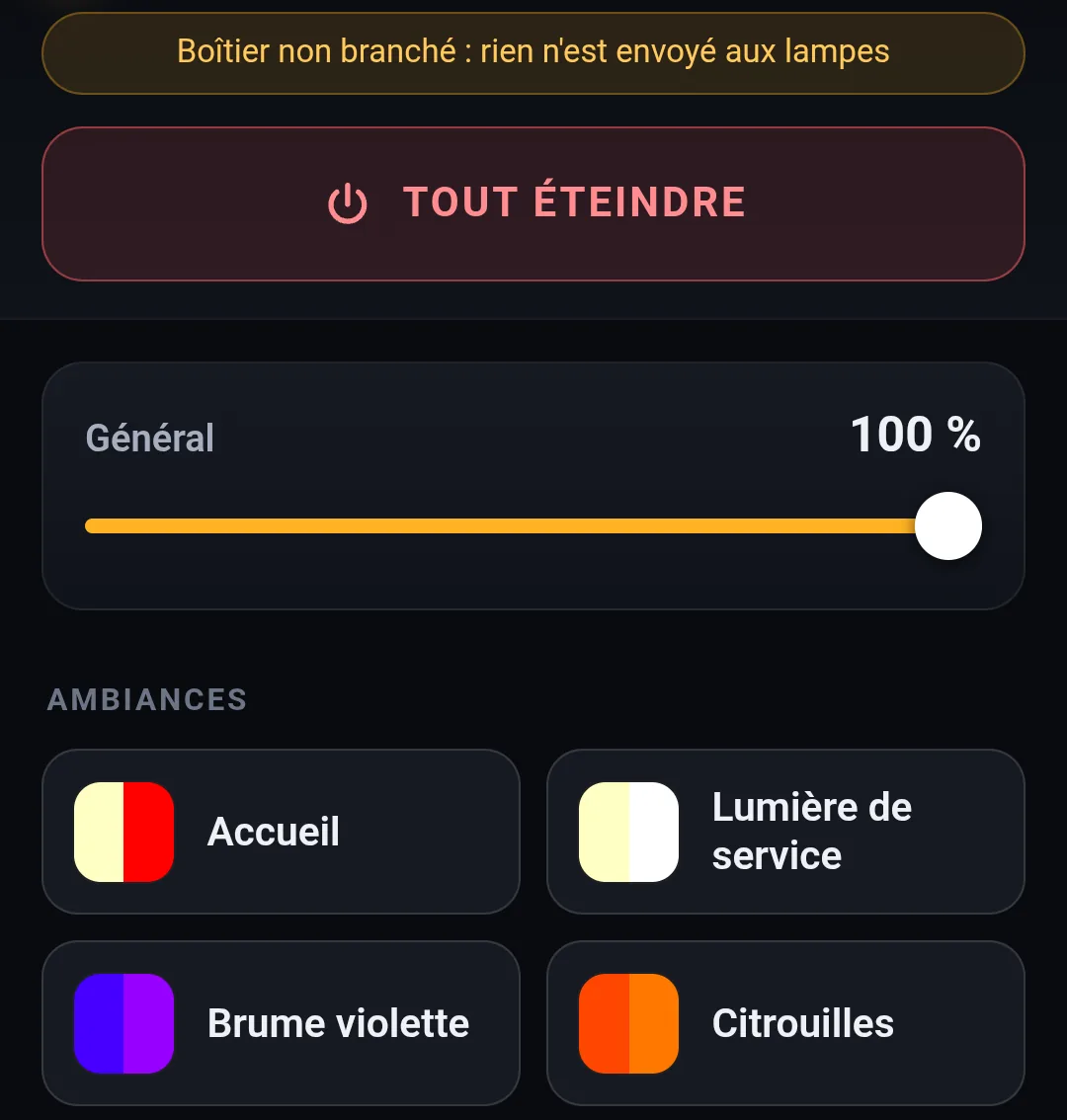
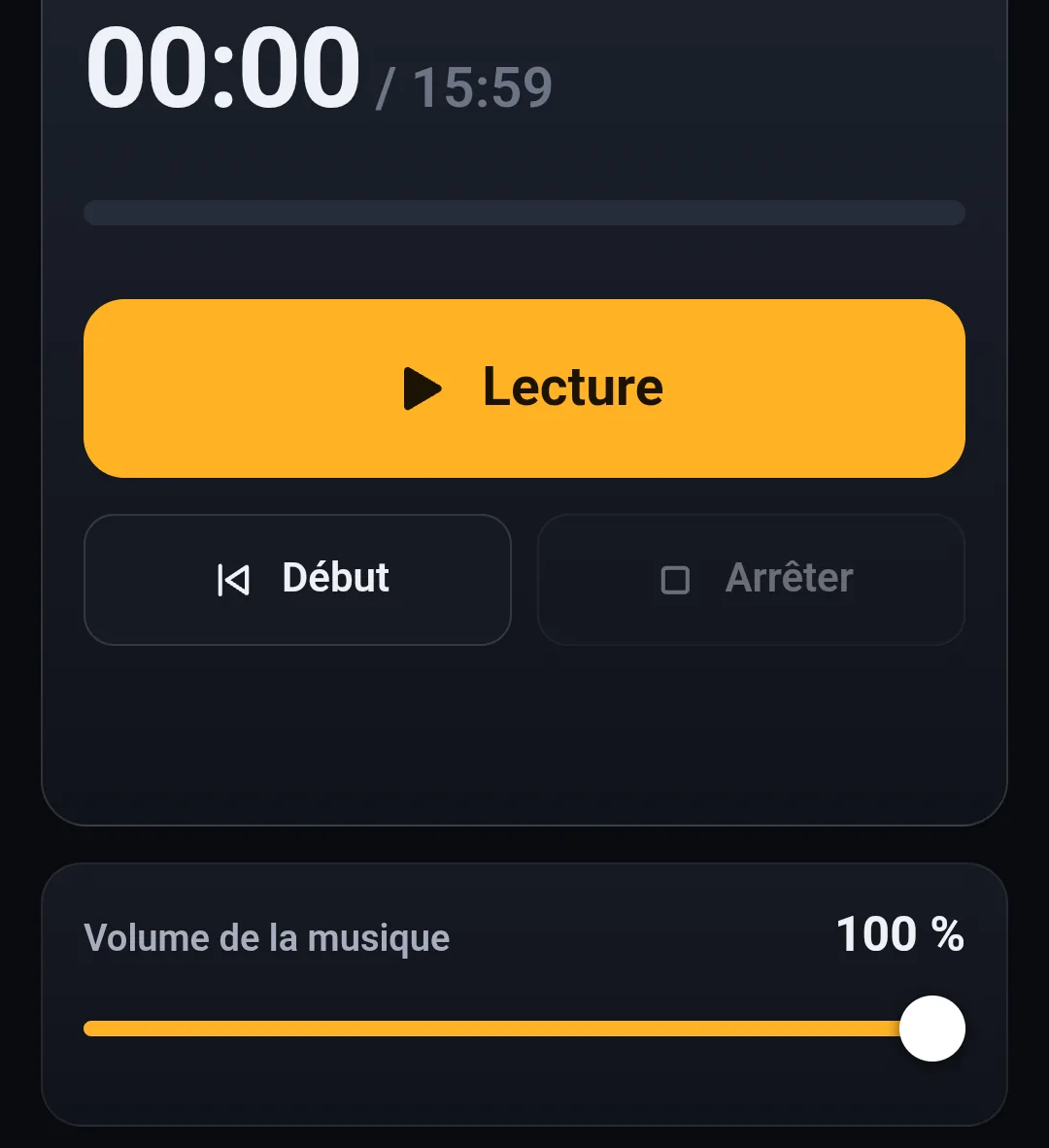
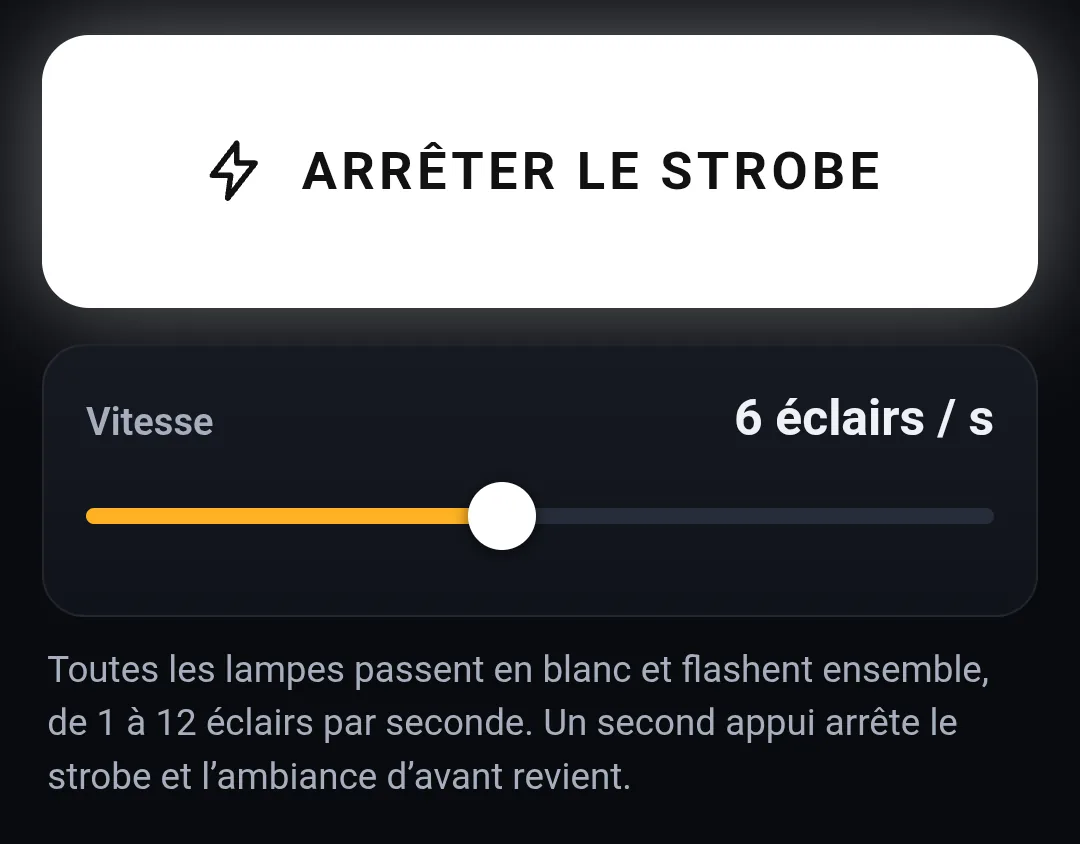
Whatever the phone does, the PC screen shows it too: a scene started from the phone is outlined in amber on the PC.
To the beat of the music
The PC or the phone listens to the music in the room, and on every beat, the lights pulse: each one takes a bright color, then fades gently back. Between beats, they stay dimly lit. The scene’s movements keep going. The PC can listen by itself (see To the beat of the music); with the phone:
-
The Beat tab: check the lights
The ones that should follow (All or None in one tap). An unchecked light keeps its current lighting while the beat runs.
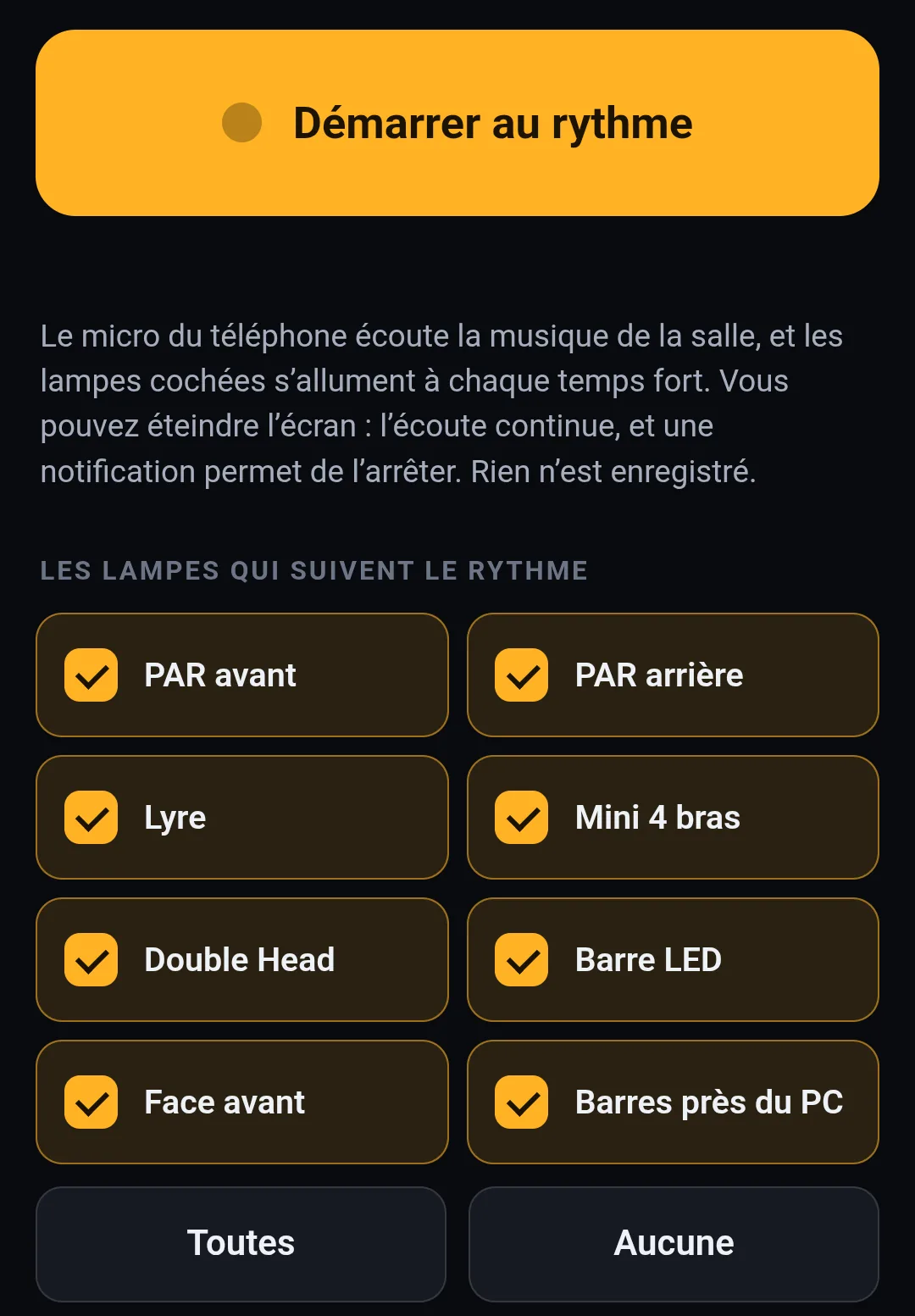
- “Start to the beat”The first time, Android asks you to allow the microphone: accept. Put the phone down in the room.
- You can turn the screen offListening continues. A notification, “Lumières is listening to the music”, lets you stop it.
- Nothing is recorded. Only the strength of each beat is sent to the PC, never the sound.
- To stop: the button on the phone, the notification, or Stop on the PC’s banner. Starting a scene, touching a light that follows the beat or starting an act also stops it. Blackout puts the room in the dark without stopping the phone from listening: Lights on brings the beat back.
- If the PC stops hearing from the phone for six seconds, the lights go back to the previous scene.
Removing a phone
On the PC, Settings, Phone section: every paired phone is listed. Remove cuts off its access; it will need a new pairing code. Do this for a lost phone or one you lent out.