Features
Everything you need for an evening event
And nothing more. Every feature was designed for someone who has never touched a lighting console.
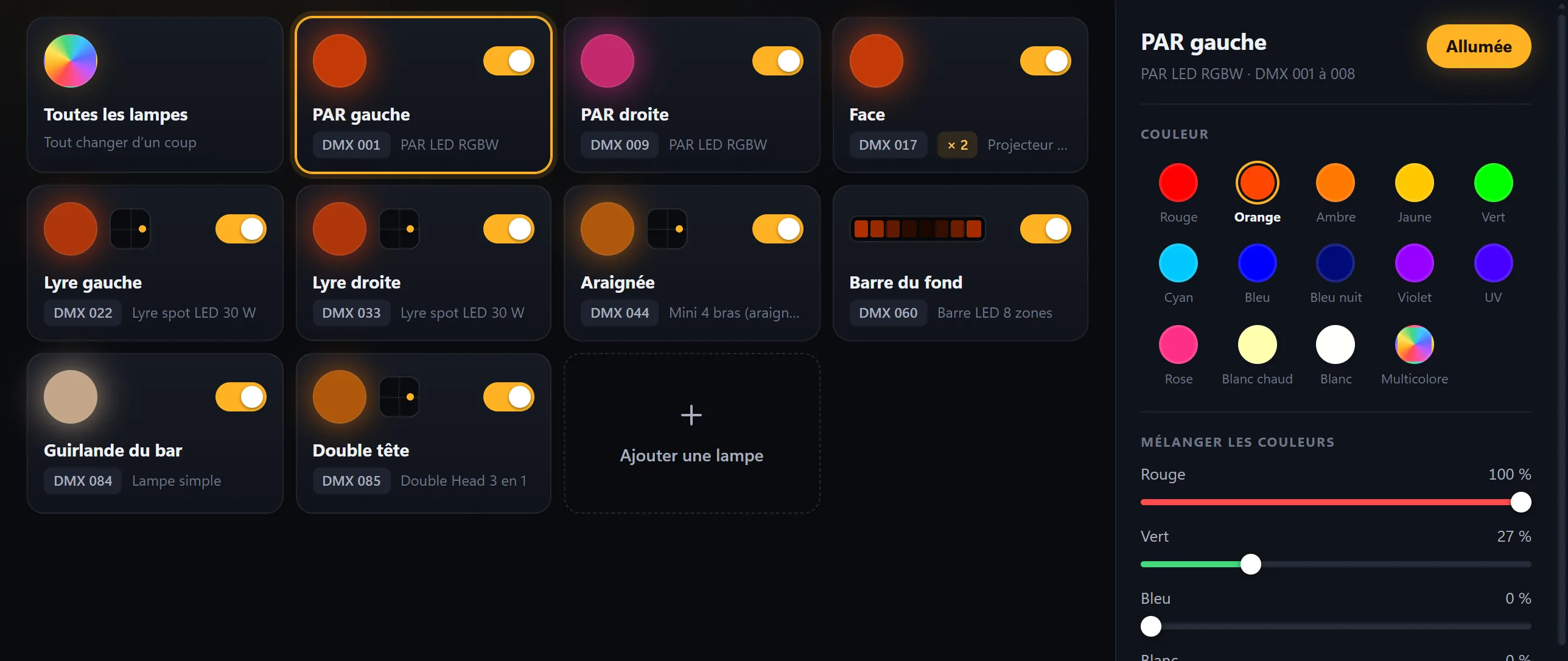
Your lights, as cards
One card per light, with its name, its address and its live color: what the screen shows is what is really sent to it. One click selects it, and its settings open on the right.
Learn more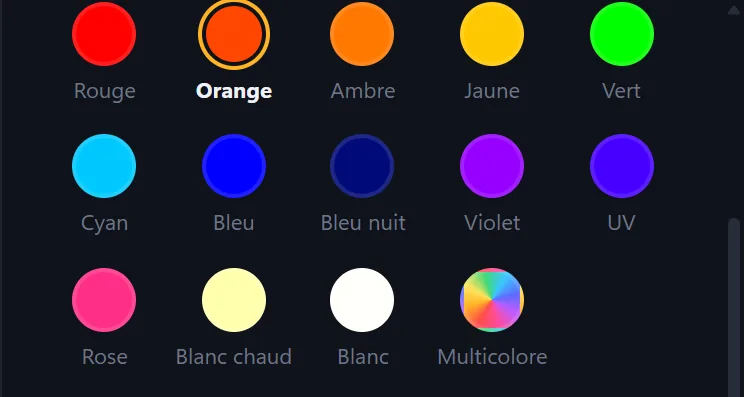
Colors at a click
Thirteen ready-made colors, a mixer to find your own, and your colors saved under a name. A moving head with a color wheel only shows its own colors.
Learn more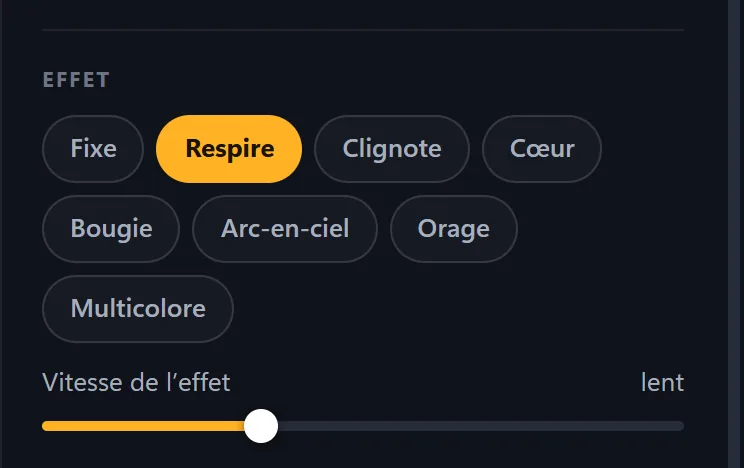
Ready-made effects
Breathe, Candle, Heartbeat, Storm, Rainbow… One click, a speed, and the light comes alive on its own. LED bars also have their own patterns: wave, chase, drops.
Learn more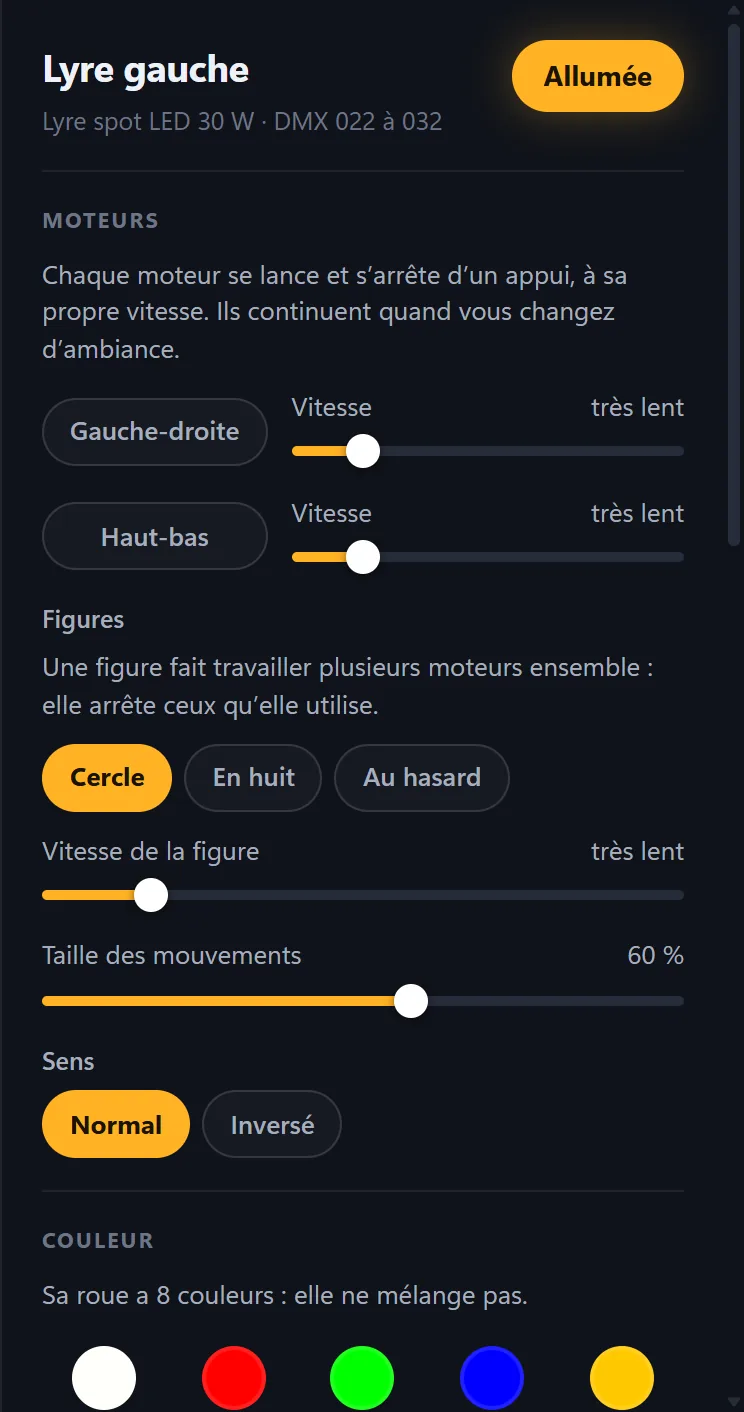
The lights that move
Each motor starts and stops with one press, at its own speed and in the direction you choose; a figure (circle, figure eight, random) works several of them together. They keep going when the scene changes. The included Double Head even spins both of its heads.
Learn more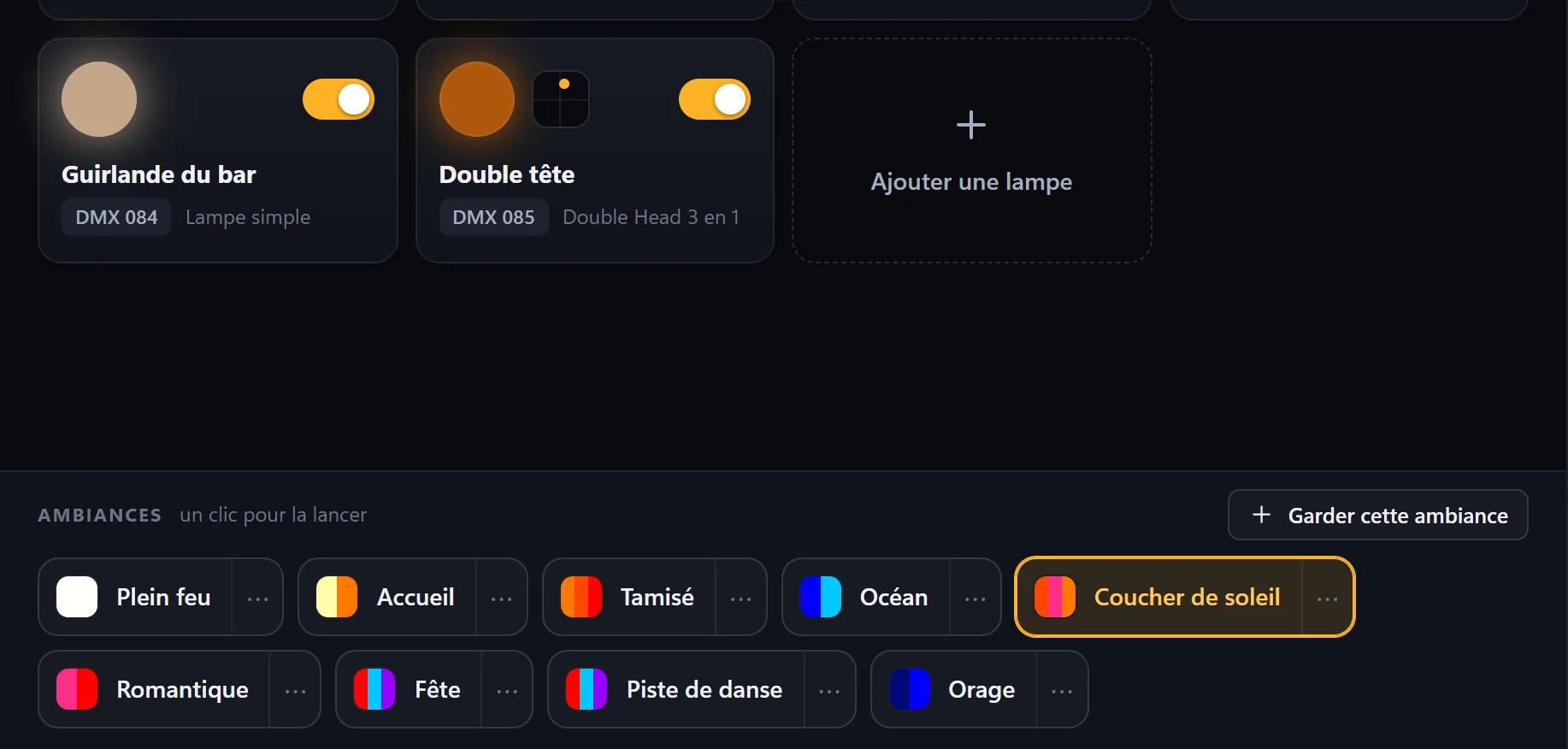
Scenes, ready-made and your own
As soon as your lights are added, Lumières prepares nine scenes made for them. Your own are saved in a single step, and the room fades from one to the next.
Learn more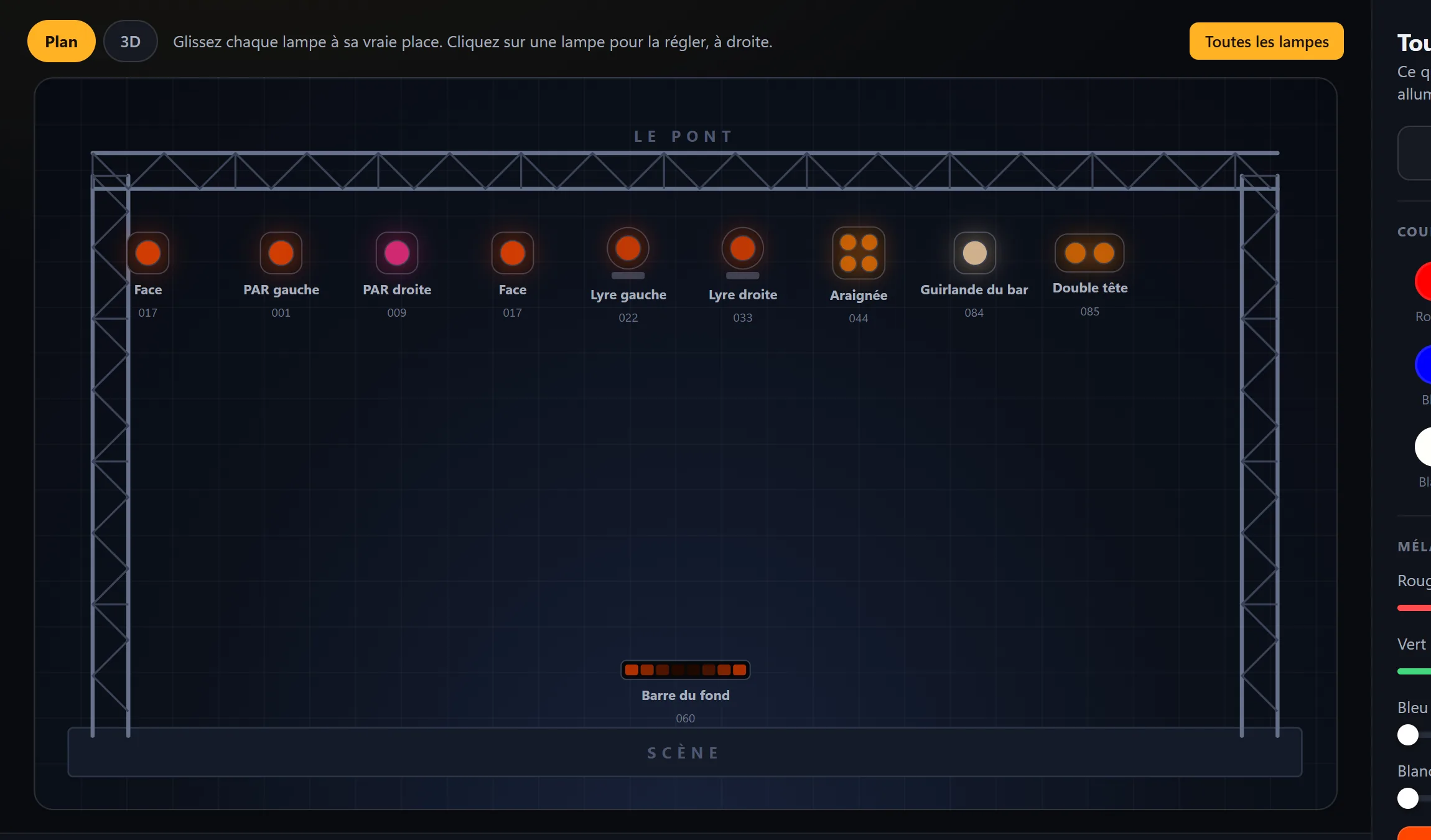
The room layout
Drag each light to its real place, under the truss or at the edge of the stage: you adjust the one you see in front of you. Identical lights set to the same address are all drawn there.
Learn more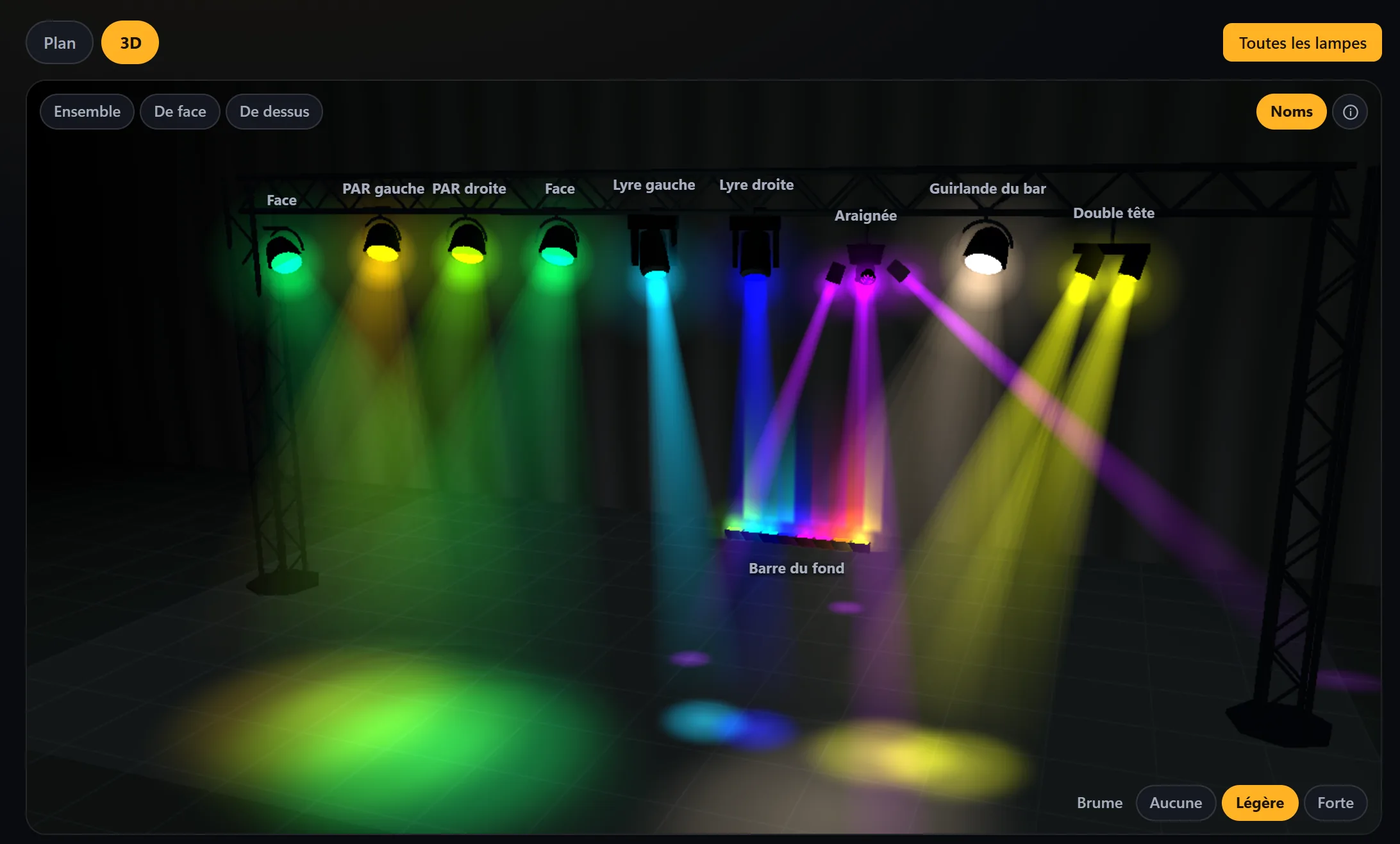
Your room in 3D
One click, and the layout becomes the room in three dimensions: the truss, your lights, their beams in the haze, with the colors really being sent to them. You can rotate around it, view it from the front or from above, and click a light to adjust it.
Learn more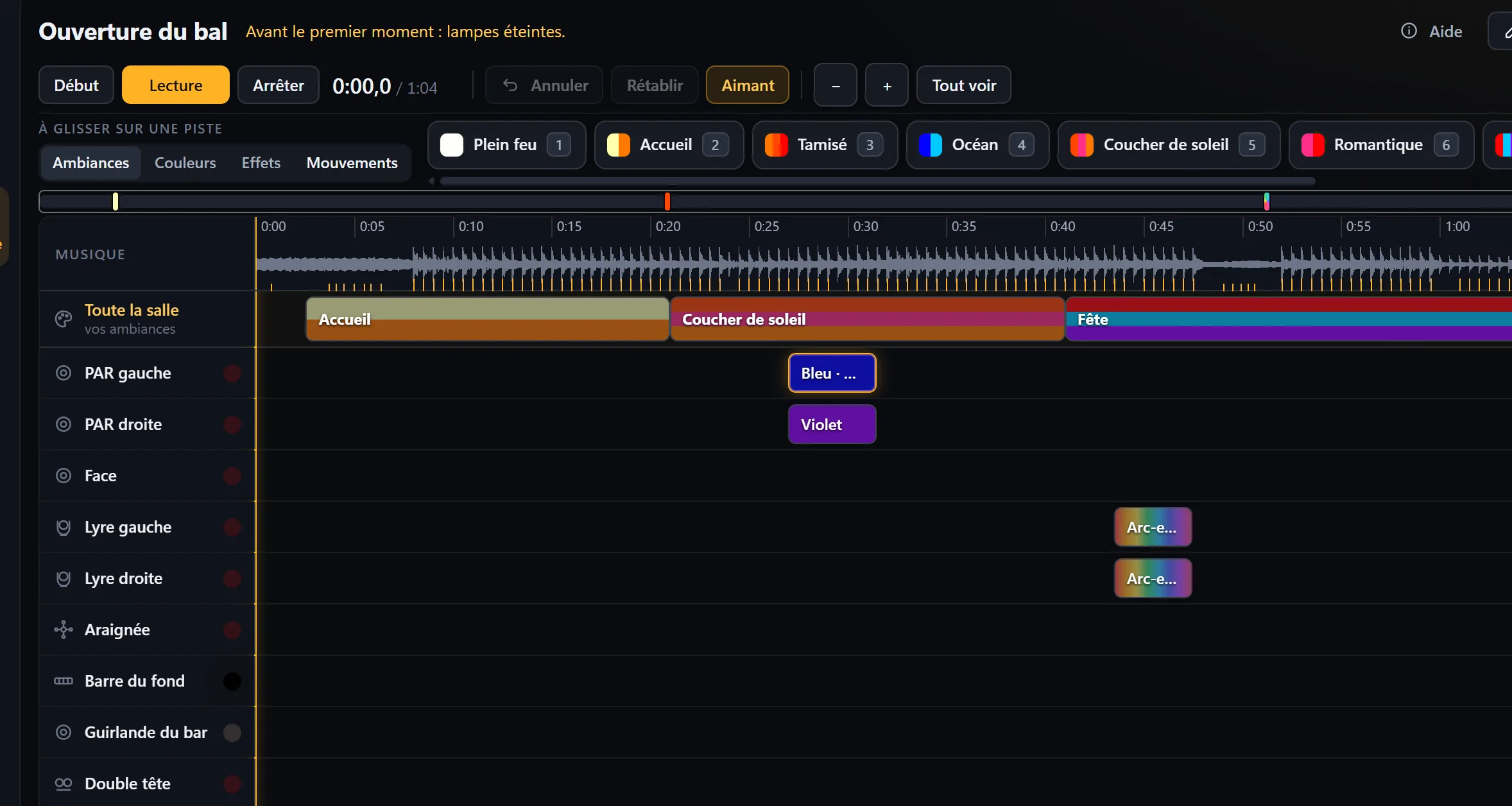
The show
An act is a piece of music with your lights on top. You place them on tracks with the mouse, as in music software: your scenes for the whole room, a color, an effect or a movement for a single light. Then a single button starts both, and the lights stay locked to the music, even after a pause or a jump.
Learn more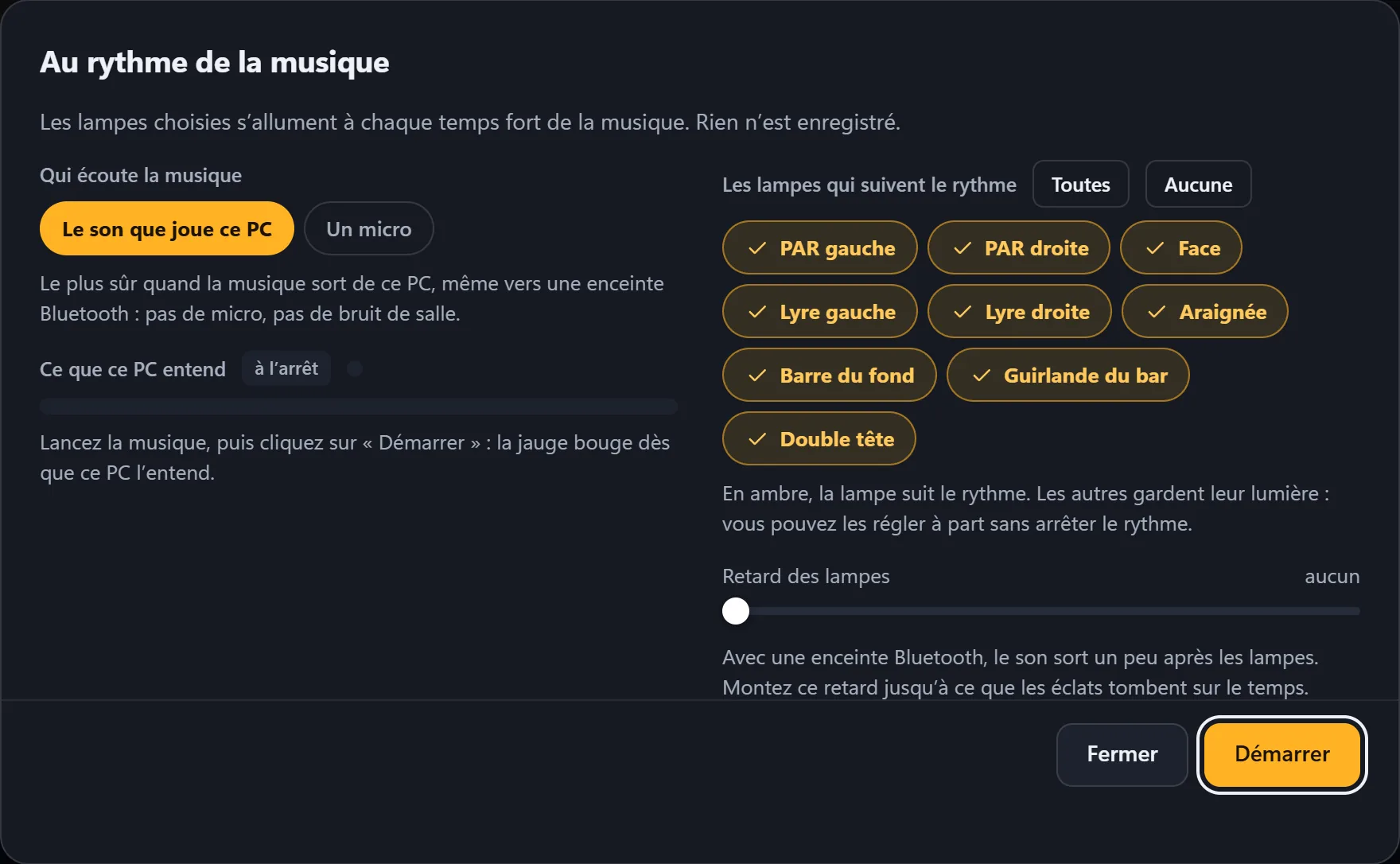
To the beat of the music
Start the music, click “Beat”, then “Start”: the PC listens to what it is playing, or to a microphone, and the chosen lights pulse on the beats, with a bright color on each one. The phone can listen to the room too. Nothing is recorded.
Listen to the demo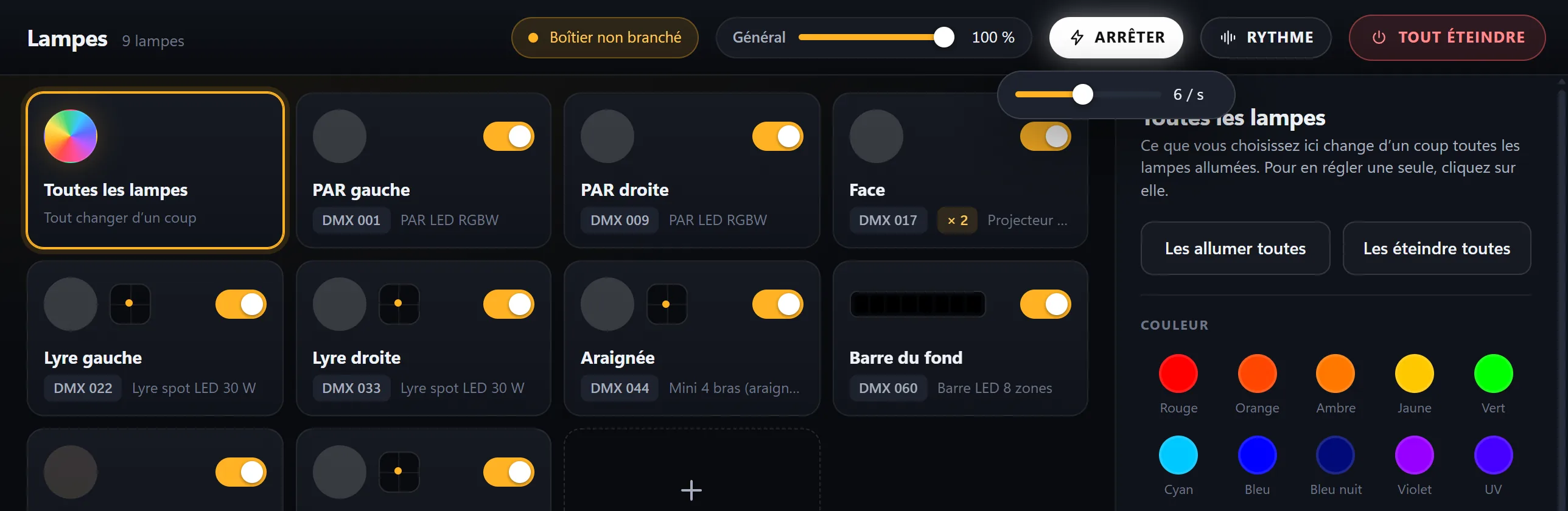
The strobe
Every light in white, flashing exactly together, from 1 to 12 flashes per second. Press again, and the previous scene comes back.
Learn more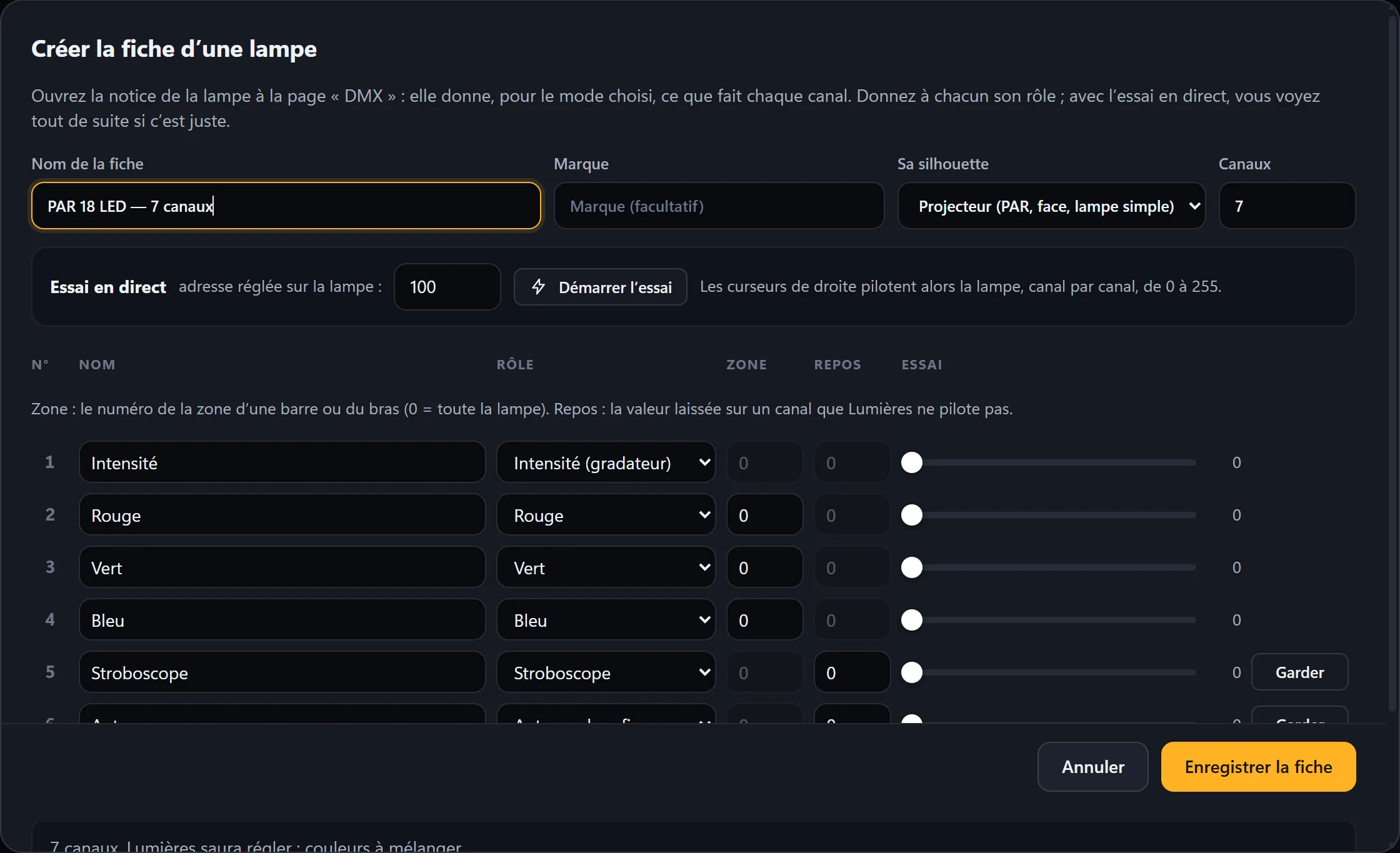
All your DMX lights
Thirteen light profiles are included. Yours isn’t there? You create its profile from its manual, channel by channel, testing it live.
Learn more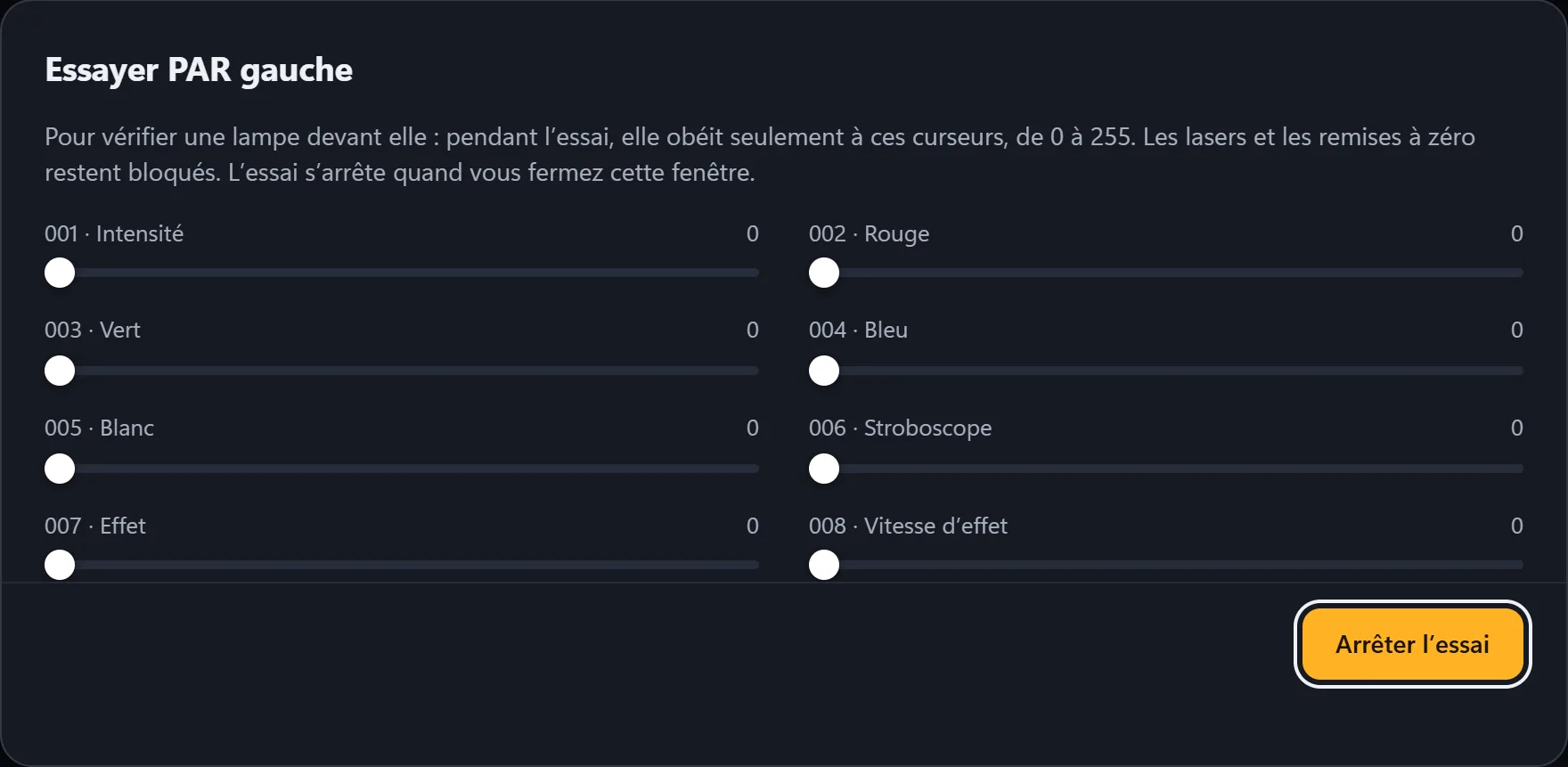
Safety first
A laser never turns on, a reset is never sent: these channels stay blocked, even during a test. And nothing gets lost: a deleted scene, light or act goes to a trash, and a backup of your settings is kept every day.
Learn moreEverything explained, step by step
From connecting the interface to your first show, with real screenshots of the software.