The screen at a glance
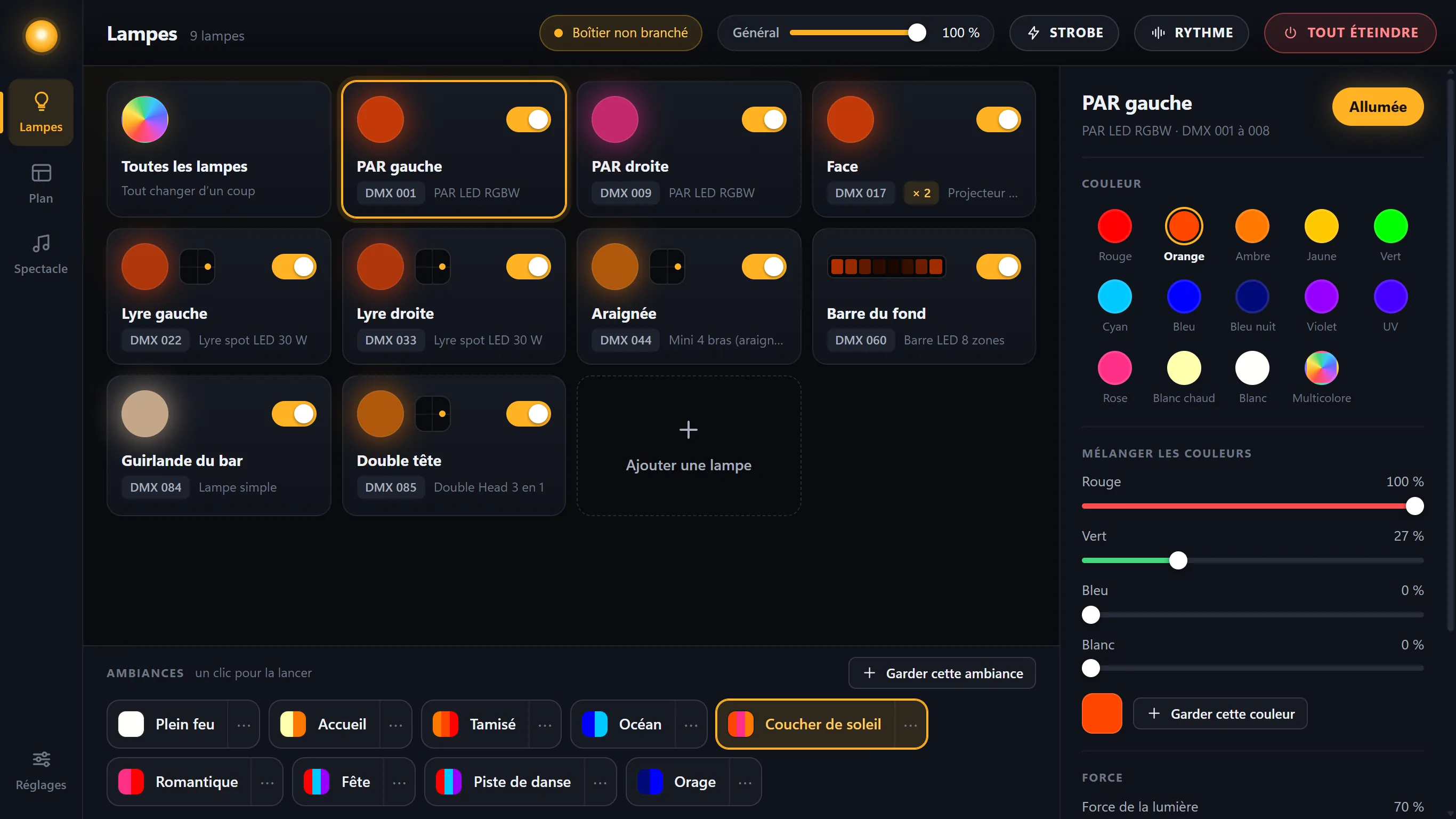
- The light cards: one per light, with its live color.
- The DMX interface: green when everything is being sent to the lights.
- Master: the brightness of the whole room, from 0 to 100%.
- Strobe: every light in white, flashing together.
- Beat: the lights to the beat of the music.
- Blackout: the room goes dark, with no settings lost.
- The settings of the selected light: color, brightness, effect, movement.
- The scenes: one click to start one.
- The screens: Lights, Layout, Show, and Settings at the very bottom.
Changing a light’s color
The circle on each card shows what is really being sent to the light, right now. To adjust it:
- Click its cardIts settings open on the right. If it is off, touching a color, an effect or the brightness turns it back on: a color on a light that is off wouldn’t show.
-
Click a color
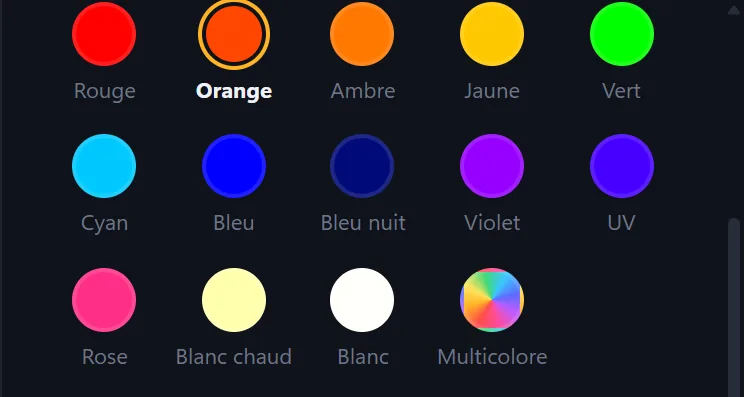
Thirteen colors are ready. Multicolor, at the end, gives the light a random bright color that changes on its own.
- Set its brightnessThe Brightness slider, from 0 to 100%. The Master slider, at the top, also acts on the whole room: a light at 80% with Master at 50% shines at 40%.
Finding your own color
Below the colors, four sliders: red, green, blue, white. The light follows live. A color you like can be saved: Save this color, a name, and it joins the others for every light. Right-click it to remove it.
Moving heads with a color wheel
A moving head often has just one wheel with a few colors: its settings only show those. When a scene asks for a color it doesn’t have, it takes the closest one. And when its color changes, it goes dark for a quarter of a second while the wheel turns: that’s intentional.
The whole room at once
- Click “All lights”It’s the first card.
-
Choose color, brightness or effect
Whatever you choose changes all the lights that are on at once (or all of them, if none are on).
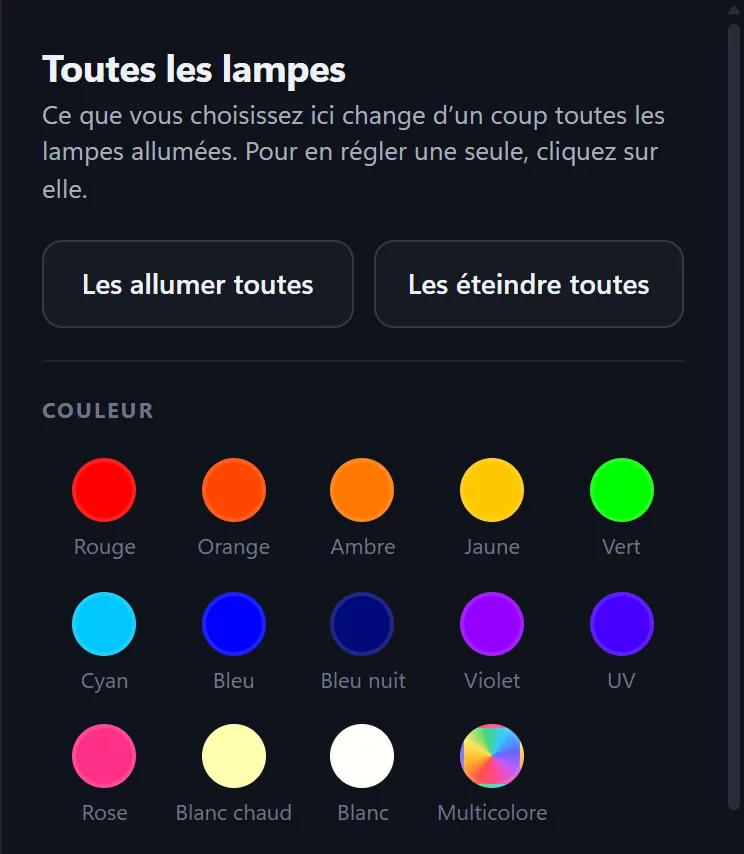
Turn off all lights turns them off one by one: you will have to turn them back on. To cut the room and get it back exactly as it was, use Blackout, at the top.
Effects
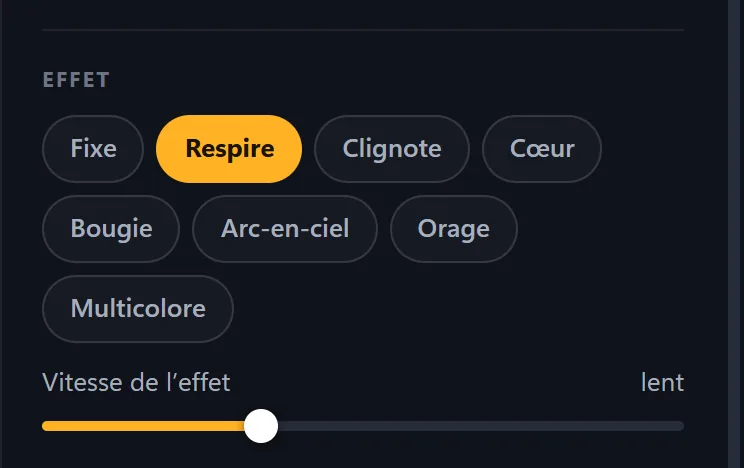
An effect animates the light on its own. Click one in the light’s settings, then choose its speed, from “very slow” to “very fast”.
| Effect | What the light does |
|---|---|
| Steady | It stays in its color. |
| Breathe | It rises and falls gently, like a breath. |
| Blink | On, off, on… |
| Heartbeat | Two quick beats, then a pause. |
| Candle | It flickers like a flame. |
| Rainbow | It goes through every color, one after another. |
| Storm | Its color very faint, and every now and then a double white flash, on all the lights at the same time. |
| Multicolor | A random bright color that changes on its own; each light has its own. The Transition from one color to the next slider goes from “instant” to a slow fade. |
A single-color light (a white spotlight, a string of lights) doesn’t change color: Rainbow and Multicolor are not offered for it.
LED bars
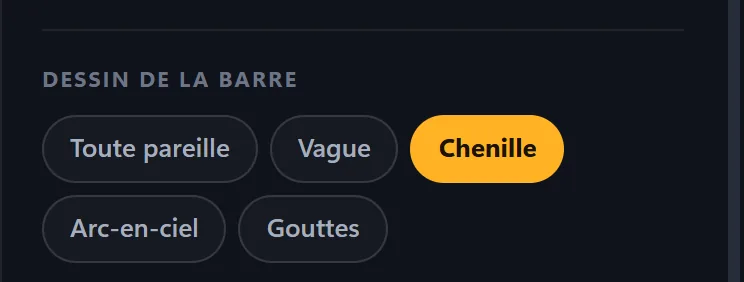
A bar has several color zones. Its settings have one more row, Bar pattern: Solid, Wave, Chase (a bright head running along with its trail), Rainbow, Drops (zones that light up at random and fade out gently).
The motors of moving lights
A moving head, a double-head light and a spider with several arms all have motors. At the top of their settings, the Motors section only shows what theirs can do.
- Click the moving head’s cardIts settings open on the right, with the Motors section at the top.
-
Start a motor
Left-right and Up-down: one press starts it, a second press stops it, and each one has its own speed. They keep going when you change scenes.
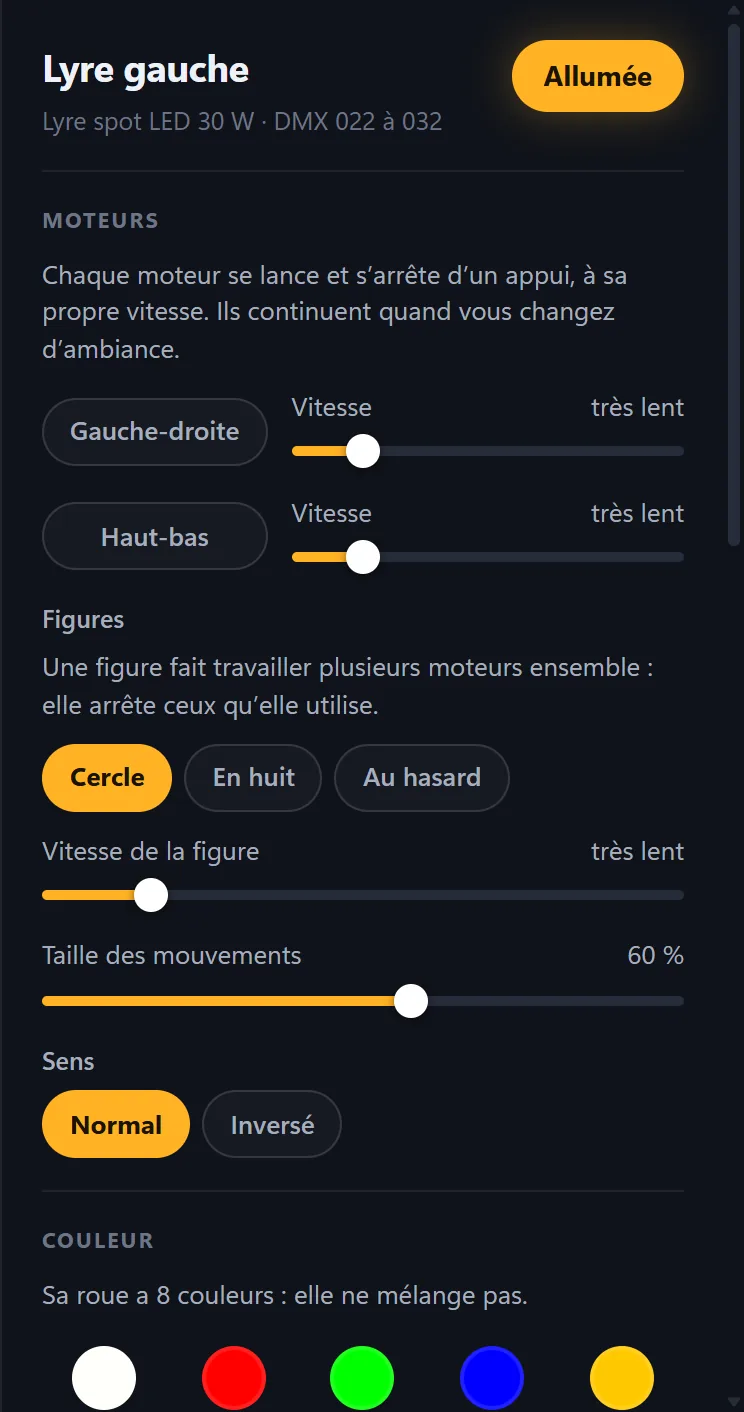
- Or a figureCircle, Figure eight and Random work several motors together; a figure stops the ones it uses. Below are its speed, the size of the movements and the direction: Normal or Reversed.
-
Or aim it by hand
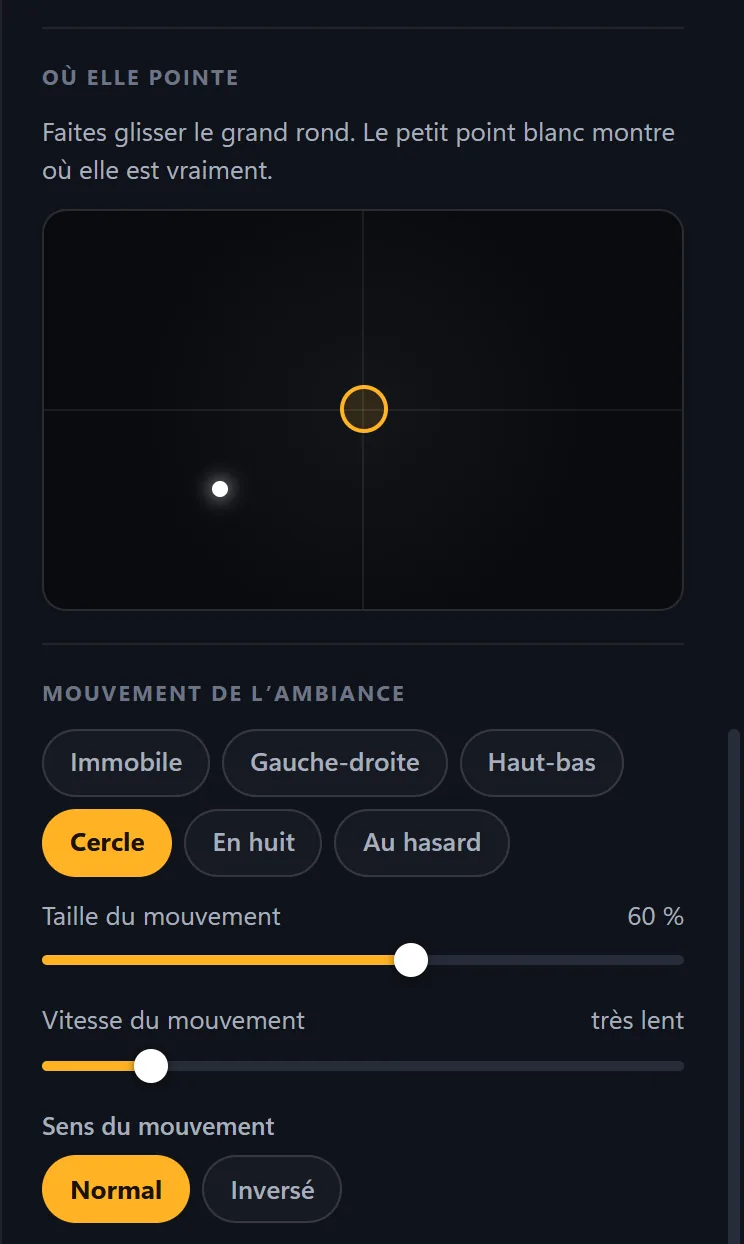
Further down, Where it points: drag the large circle, and the moving head aims there; the small white dot shows where it really is. Below are the movement the scene keeps, its size, its speed and its direction. While a motor is running, it takes priority: stop it to choose here.
The included Double Head
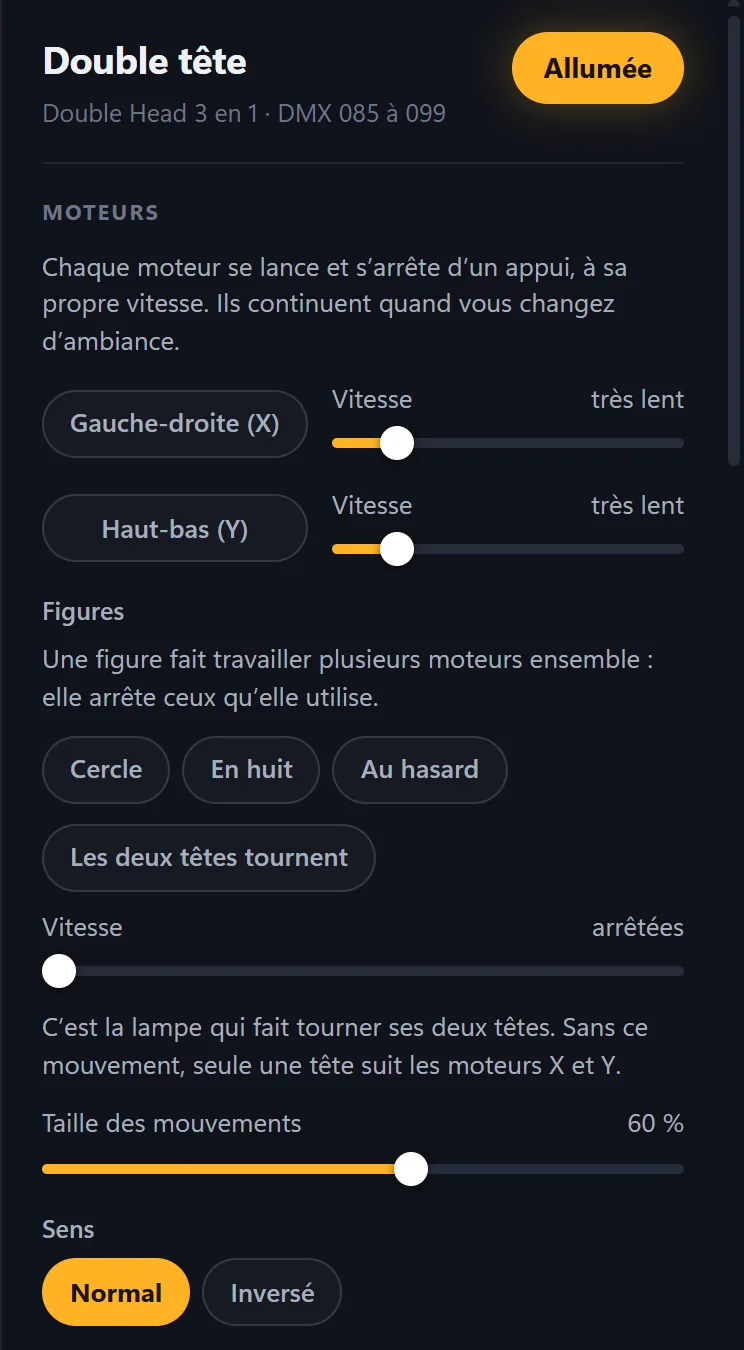
The “Double Head 3-in-1” profile also has Both heads rotate, with its speed: all the way to the left, the heads are stopped. Without this movement, only one head follows the left-right and up-down motors.
A spider has its own: its base and its arms, whose speed is set separately. A light that is off in the current scene moves in the dark: turn it on to see it. A motor only runs as long as Lumières is open; its speed, however, is kept.
The strobe
- Click “Strobe”At the top of the screen. All the lights switch to white and flash exactly together; the button turns white and reads Stop.
-
Set the speed
The slider appears next to the button: from 1 to 12 flashes per second.
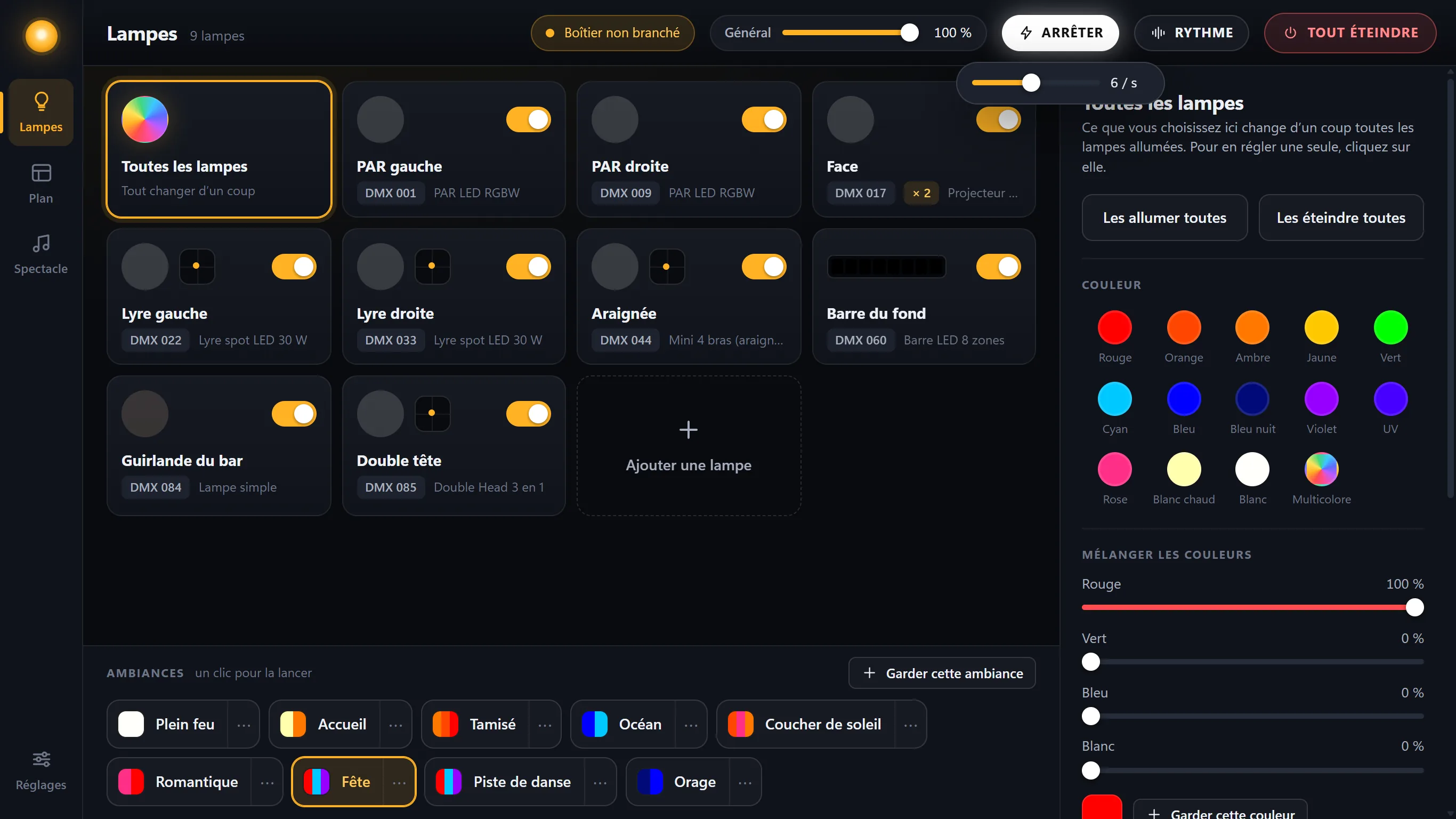
- StopPress again: the previous scene comes back. The lights’ motors, for their part, kept going during the strobe.
Fast-flashing lights can bother some people. A short strobe, announced and not too fast, is just as effective.
Blackout
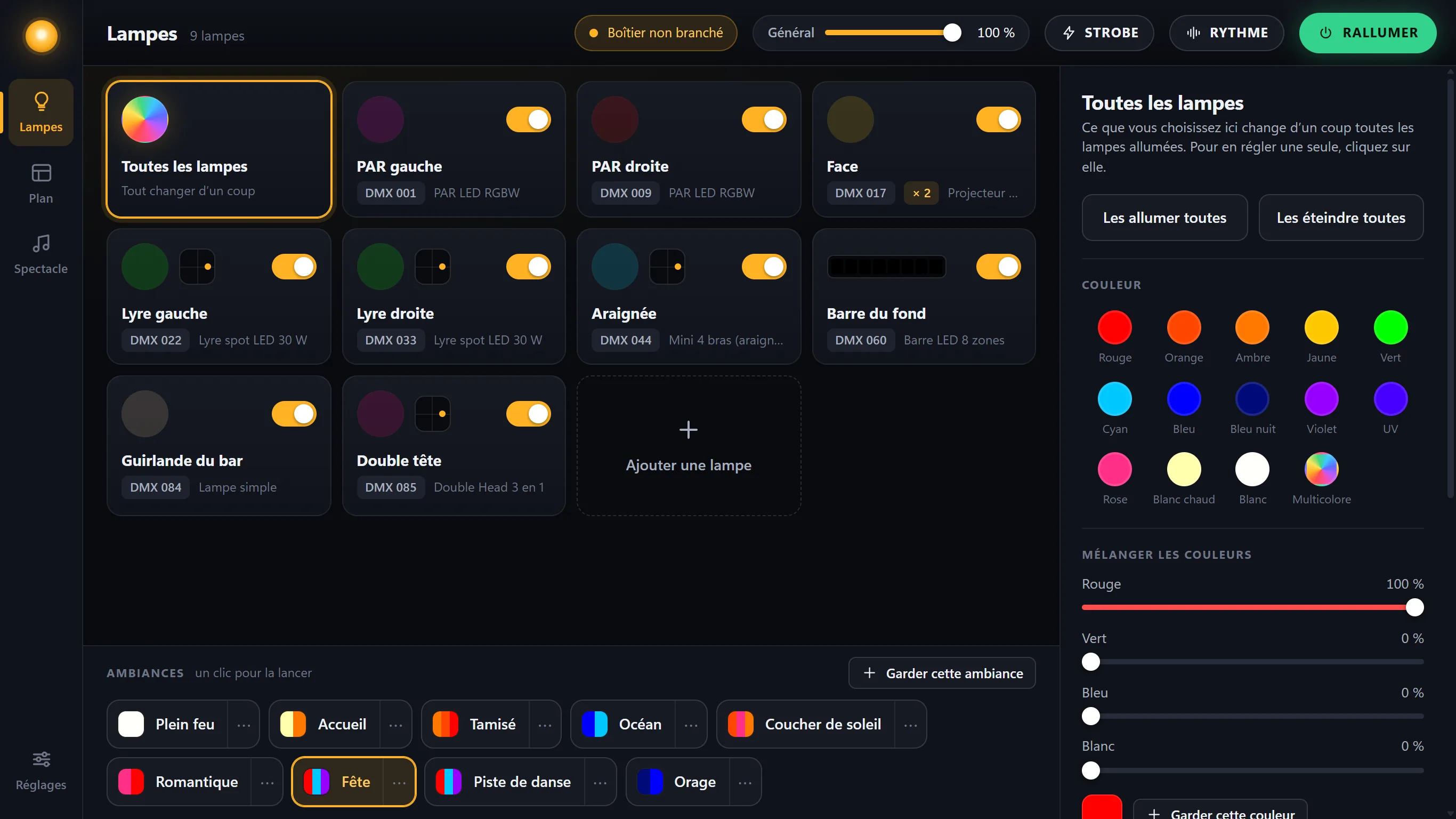
The red button, at the top right, puts the whole room in the dark without changing any settings. It then becomes Lights on, in green: one click, and the room comes back exactly as it was. Lumières always starts in this state, with the room dark.
Arranging the cards
You can arrange the cards however you like: grab one and drag it to its new place. With the keyboard, Alt + arrow keys: left and right by one place, up and down by one row. This order is used everywhere in Lumières.
The room layout
The Layout screen shows the room from the front, with the truss (the metal structure the lights hang from) and the stage. Each light shows the color really being sent to it.
- Drag each light to its placeIts position is saved. With the keyboard, the arrow keys move it (with Shift, in big steps).
-
Click a light to adjust it
Its settings open on the right, the same as on the Lights screen: you adjust the one you see in front of you.
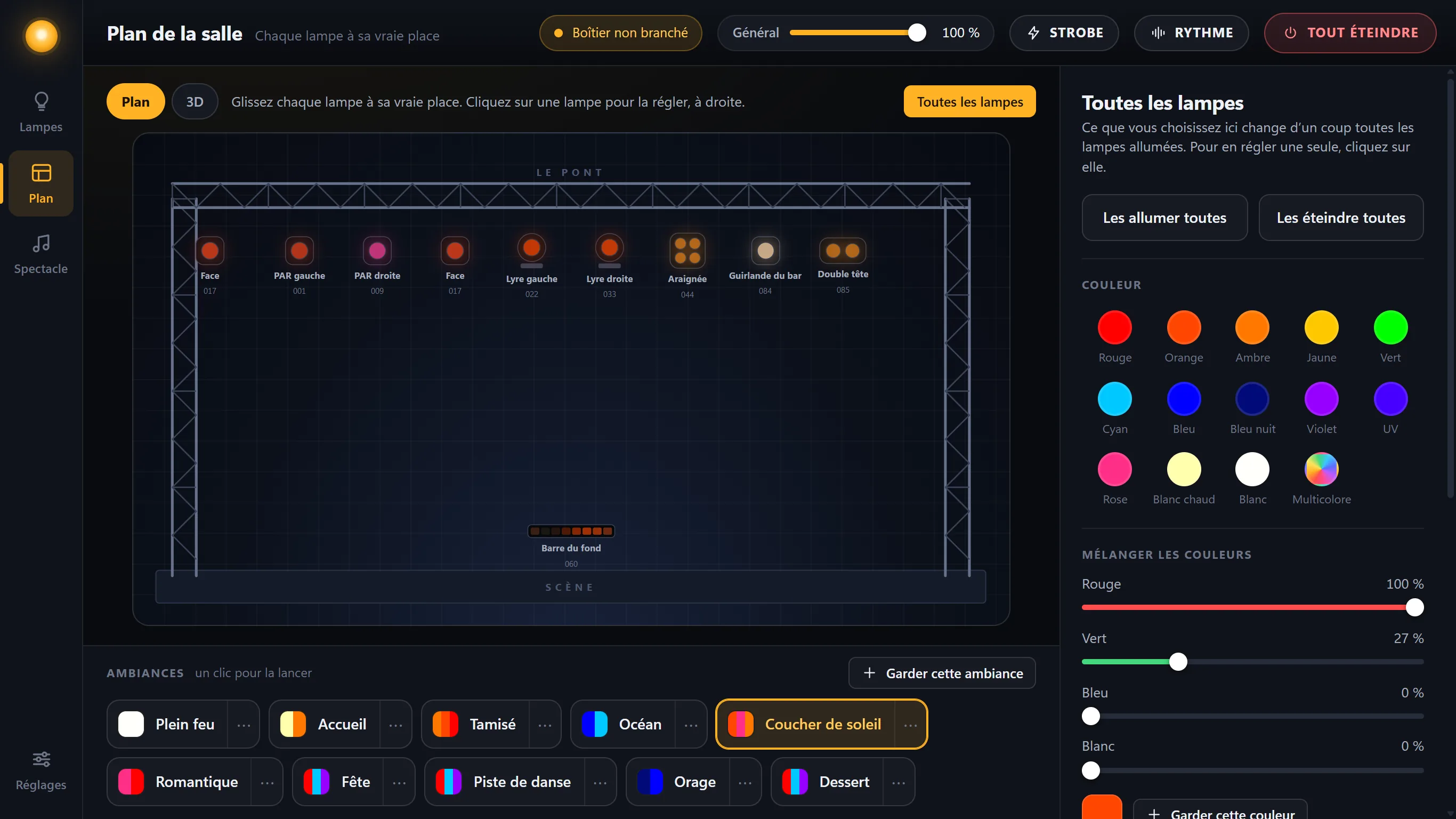
Several identical lights set to the same address share a single card, marked “× 2”, “× 3”…: they receive the same commands. The layout, however, draws them all, each in its own place.
The room in 3D
On the Layout screen, the 3D button shows your room in three dimensions: the truss, your lights in their places, and their beams in the haze, with the colors and flashes really being sent to them.
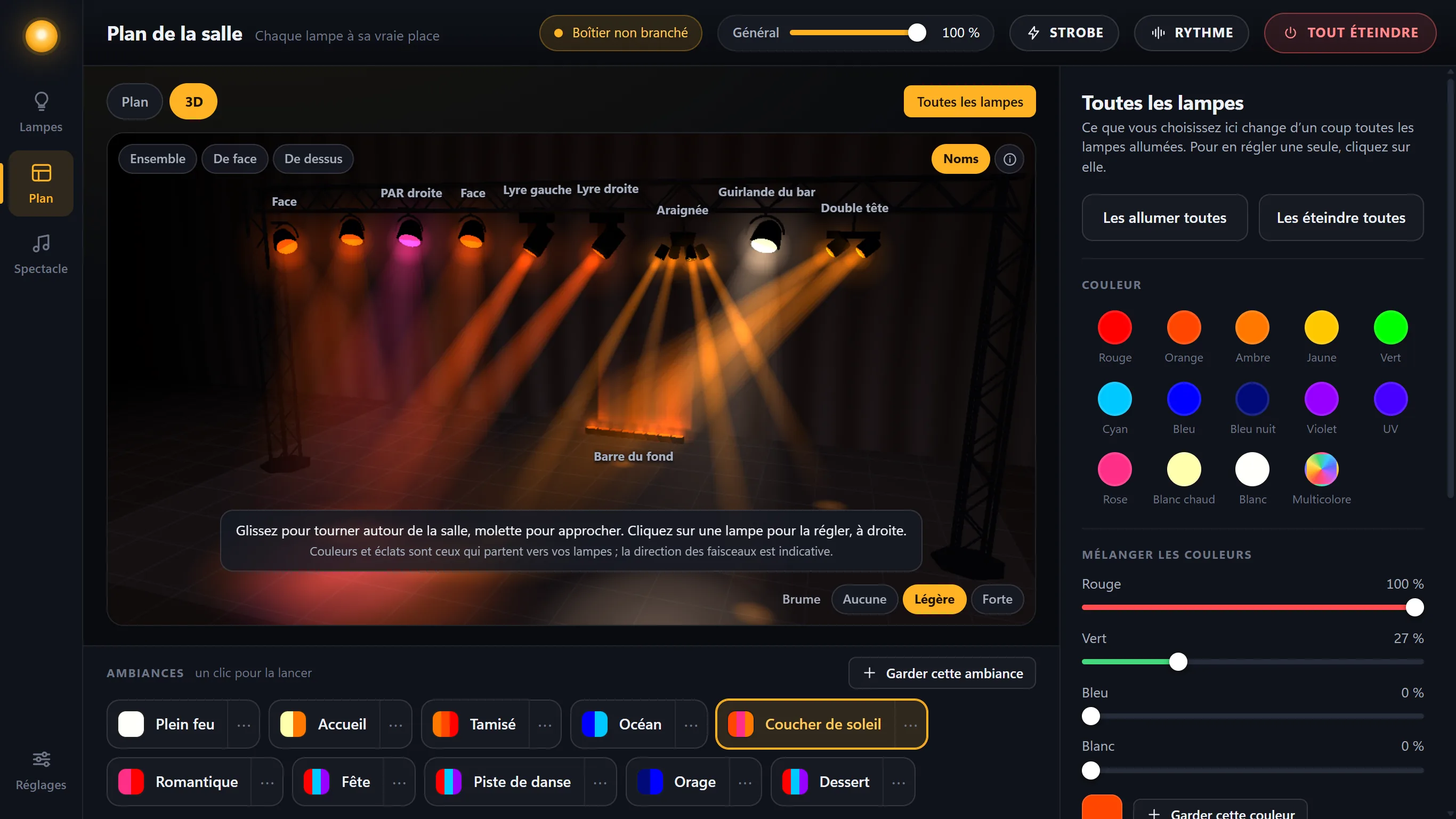
- Rotate around it: drag inside the room; the scroll wheel brings you closer.
- Three viewpoints in one click: Overview, Front view, Top view.
- Adjust a light: click it, and its settings open on the right.
- The haze: None, Light or Heavy; Names shows or hides the names of the lights.
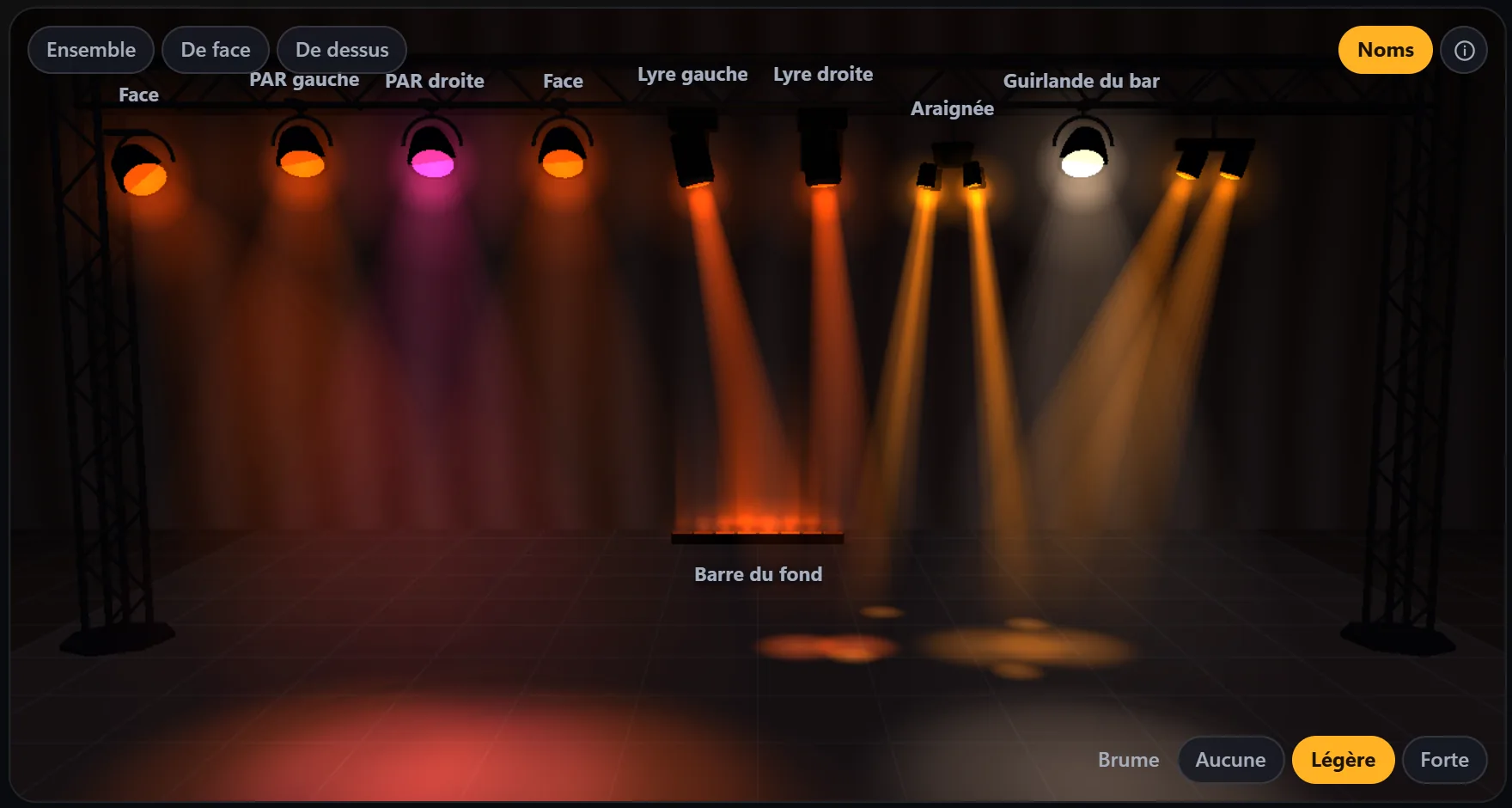
The colors and flashes are the ones being sent to your lights; the direction of the beams, however, is only approximate. On screen, the strobe stays at 3 flashes per second at most.